Model guide
How to Use GPT Image: 2.6, 2.5, Flare and Sunburst
To use GPT Image on Vidlark, choose GPT Image 2.6 or 2.5 in Flare or Sunburst, enter a prompt or upload an adult photo, set 1K to 4K options and Generate. OpenAI’s Flare models focus on fast everyday generation, while Sunburst emphasizes editing consistency. Review and download your finished still image from My creations.
- Step-by-step
- Credit planning
- Image generation and editing
Our example
Choose Flare or Sunburst for the task
If you are learning how to use GPT Image for a project, first decide whether you need a new composition or a precise edit to an existing one. Vidlark offers GPT Image 2.6 and 2.5 in both Flare and Sunburst as separate model pages. Check that full model name before following a tutorial for another version or a different application.
Flare is positioned for fast, everyday image generation, while Sunburst emphasizes editing precision and consistency. Keep the input, prompt and output size consistent when judging the versions for your own portrait, object or layout.
Text mode begins from your written description, while Image to Image uses supplied pictures to guide an edit. For this exercise, use an adult portrait and ask for a clean studio background so you can assess whether the requested change happened and whether the face, clothing and crop remained suitable.
GPT Image 2.6 vs 2.5: differences and choosing Flare or Sunburst
OpenAI released GPT Image 2.6 on November 4, 2026. According to OpenAI, GPT Image 2.6 generates images up to 50% faster than GPT Image 2.5, while 2.6 Sunburst focuses on tighter consistency across sequential edits. On Vidlark, both 2.6 and 2.5 support text-to-image generation and image-to-image editing at 1K, 2K, 4K, with up to 8 reference images per run.
Credit prices come from the workspace catalog: GPT Image 2.6 Flare and 2.6 Sunburst each use 55, 80 and 110 credits at 1K, 2K and 4K, compared with 40, 45 and 50 credits for the 2.5 models. An account is required to generate. GPT Image 2.6 is open to accounts with a paid plan or a credit pack and is not included in Unlimited.
When deciding between Flare and Sunburst, match the model to the step in your workflow. Start on Flare when you want fast concept drafts or a quick layout check, then switch to Sunburst when an edit needs closer detail retention across multiple passes. On Vidlark, these GPT Image pages output still images only and do not generate GIF animations or SVG files.
GPT Image 2.6 Flare
OpenAI’s faster 2.6 model for everyday text-to-image generation and reference-guided photo edits at 1K (55 credits), 2K (80 credits), 4K (110 credits).
Open the GPT Image 2.6 Flare workspaceGPT Image 2.6 Sunburst
OpenAI’s detail-first 2.6 model for tighter consistency across edits, priced at 1K (55 credits), 2K (80 credits), 4K (110 credits).
Try detailed edits in GPT Image 2.6 Sunburst
Describe the result and what must remain
Begin with the subject and the purpose of the image, then add the setting, lighting and composition in clear language. Explain where the person sits in the frame and whether you need space for other content.
When editing a photo, name the change and the features to retain. Replace the background and soften the light while keeping the adult’s face, hairstyle and jacket. Use a consenting adult’s image that is clear enough to compare with the result, and test one controlled edit before combining several changes.
If the project requires text, put the exact short wording in quotation marks and specify where it belongs, then check the generated spelling afterward. For a first portrait edit, leave lettering out so face preservation and lighting remain the main criteria.
Choose size, ratio and background
Flare and Sunburst on Vidlark each offer 1K, 2K and 4K. Use 1K for an initial composition check, then consider a larger output for delivery after inspecting the subject, lettering and edit.
The aspect ratio setting includes square, tall and wide choices as well as Auto. Choose it for the placement where the image will appear, and recheck the ratio after changing the model or workflow.
Background offers Auto, Transparent and Opaque. Select Transparent when the deliverable calls for a cutout, then inspect the downloaded file’s actual transparency and edges. For the studio example, choose Opaque because the wall is a visible part of the composition.
How to use GPT Image on Vidlark
This walkthrough explains how to use gpt image with a specific first exercise. Work through model selection, inputs, output settings and the account price before starting. The final step is your own saved result in My creations. Keep its prompt and settings with the download so a later revision has a clear reference.
Step 1
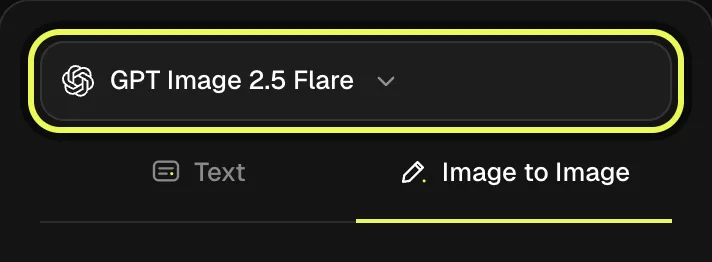
Select GPT Image 2.5 Flare
Open the GPT Image 2.5 Flare page and confirm the model name. Choose Image to Image for the portrait example, or Text for a new composition without a photo. Sunburst is a separate model choice for a later editing comparison, so keep the first test labeled with the version you selected.
Step 2
Add the portrait and state the edit
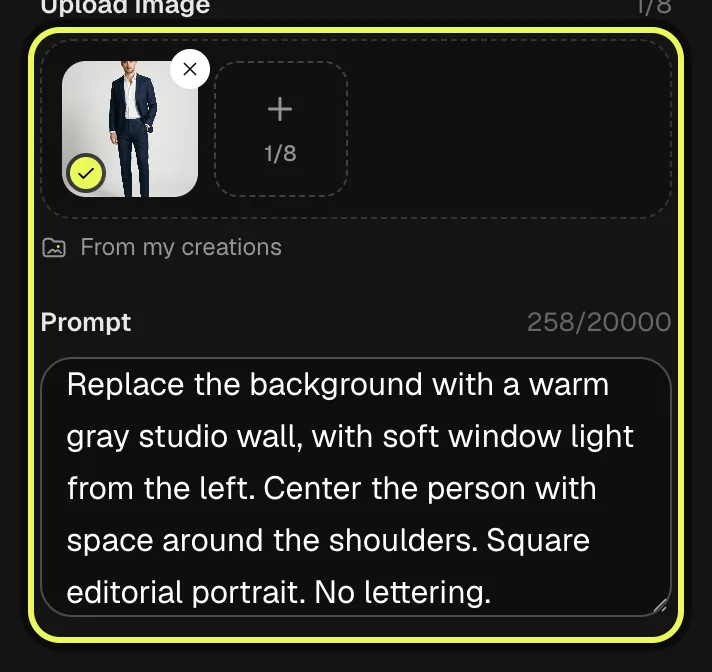
Select a photograph of a consenting adult and inspect its preview. Paste the example prompt into Prompt. It changes the background and lighting while naming the features to retain. Leave extra reference slots empty for this first test so the result can be compared with a single clear source.
Step 3
Set size, composition and background
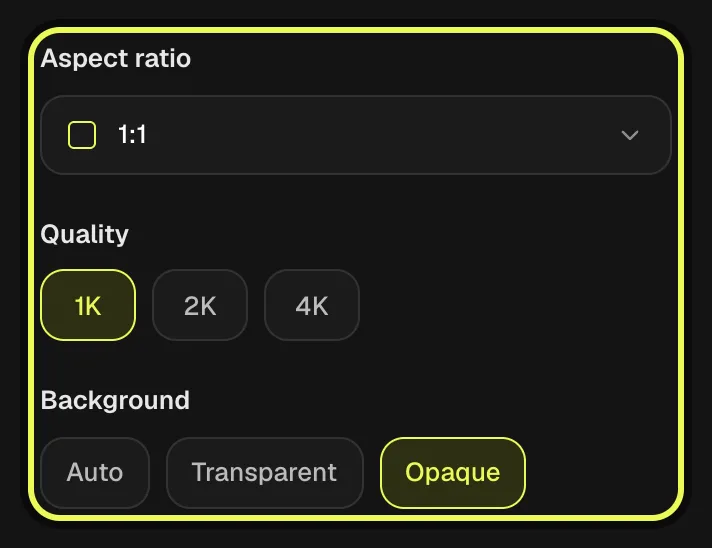
Choose 1K, a square 1:1 frame and one output image. Set Background to Opaque for the studio wall. Transparent is available for a separate cutout task, but it serves a different deliverable. Check all three choices before continuing because a plain wall and a transparent background are different requests.
Step 4
Check the amount and Generate
Sign in, review the selected model, image, prompt and output options, then read the current Generate total. Start the image when those choices match the brief. For a later Sunburst comparison, reuse the same input and instructions before changing other variables so you can assess the model choice.
Step 5
Compare the result and download
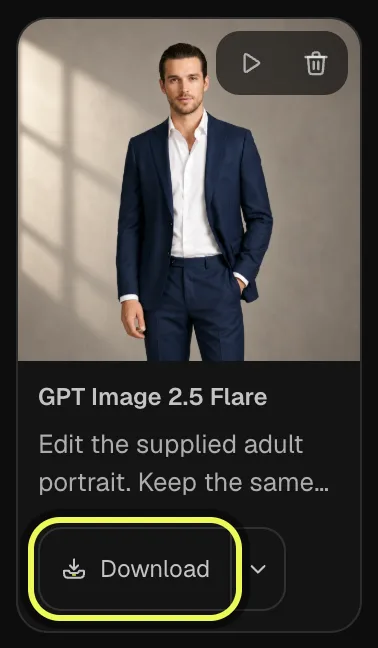
Find the finished image in My creations. Check the face and jacket against the source, inspect the studio wall and use Download on that result. Save the prompt and settings with the file. If the edit needs revision, describe the specific defect before requesting another take.
Our example
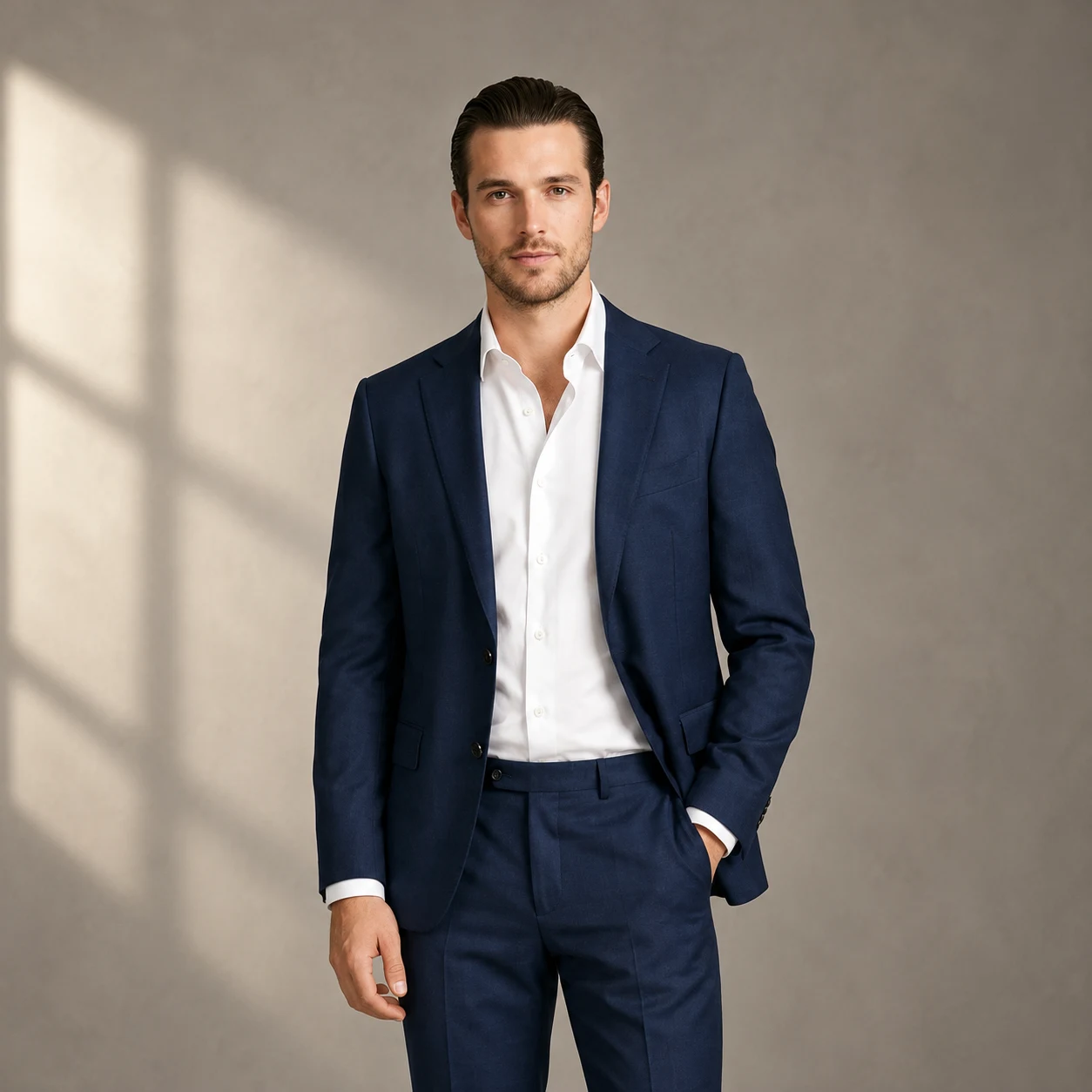
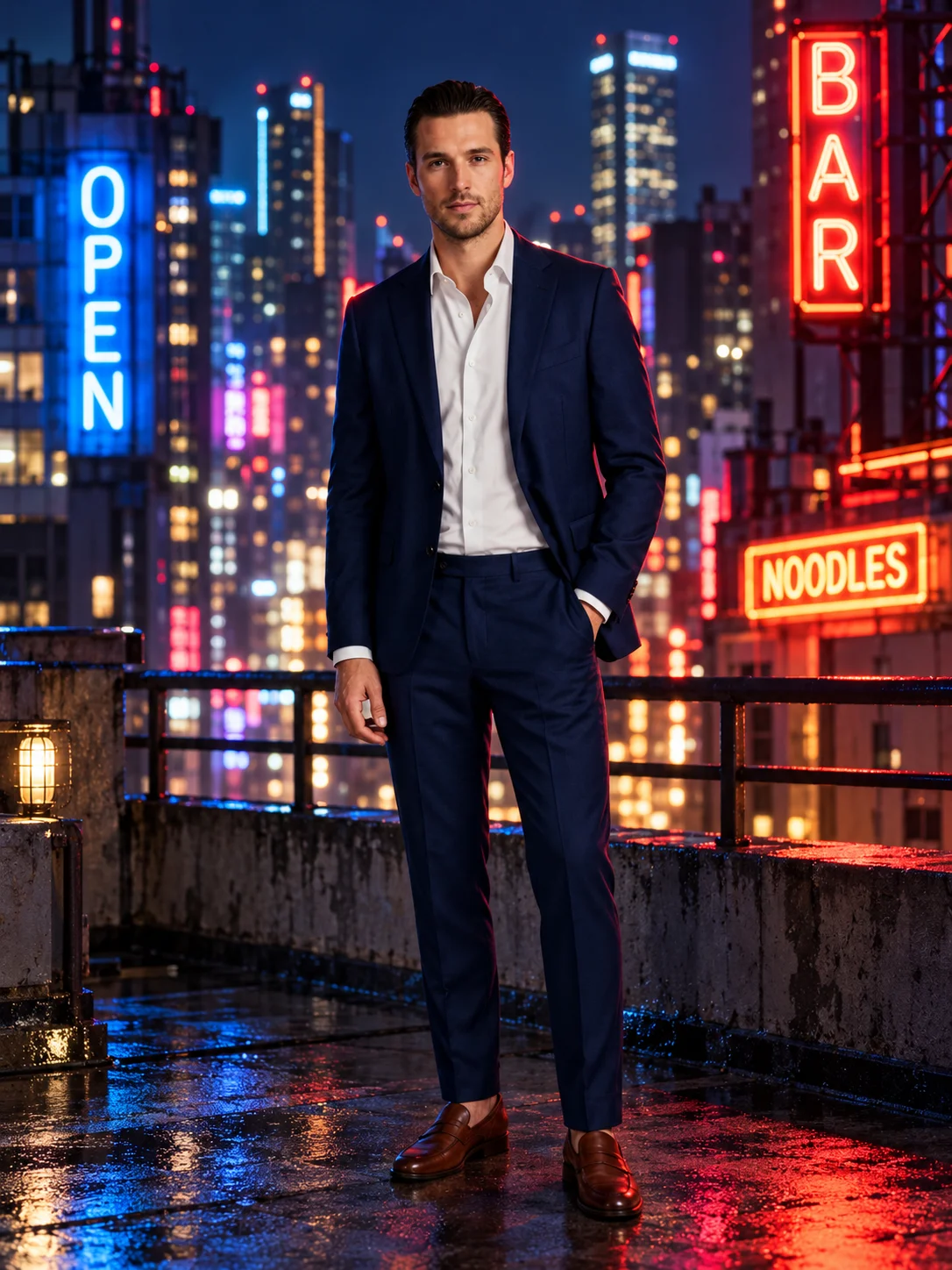
The image at the top of this page is one run on Vidlark, made with the photo shown in step 2 and the prompt below: GPT Image 2.5 Flare, Image to Image, 1K. Use your own photo of an adult who agreed to appear; the link opens the workspace with the same prompt and settings.
Prompt
Edit the supplied adult portrait. Keep the same face, hairstyle and jacket. Replace the background with a warm gray studio wall, with soft window light from the left. Center the person with space around the shoulders. Square editorial portrait. No lettering.
- GPT Image 2.5 Flare
- Image to Image
- 1K
Keep references and revisions organized
Image to Image accepts multiple references up to the current workspace limit. Begin with one adult portrait for this exercise, and add another image only when it supplies a specific element you can name in the prompt. The current limit on Vidlark is 8 reference images.
Save the original reference and prompt with the downloaded result. When revising, describe the change relative to that identified image so each generation has an explicit brief when switching between Flare and Sunburst.
Vidlark gives you access to these model choices in one account. Compare files using the same evaluation criteria: check the face, background boundaries and intended layout in each version before increasing resolution.
Check the details that matter to the project
Open the finished image at a useful viewing size and compare it with the source. Inspect the adult’s face, hairline, jacket edges and any hands, and check the new wall for unwanted objects or uneven boundaries.
When a detail needs work, change one part of the prompt or reference setup. Simplify the background if it competes with the person, specify more room if the crop feels tight, and keep the earlier take for comparison.
Sign in before generating and check the total for the selected quality and image count. Paid plans offer priority processing, while image concurrency depends on the plan. Paid plans and credit packs include downloads without a watermark.
Plan the credit budget before generating
The table shows current Vidlark list prices and the selected monthly plans’ credit amounts for one output at a time. GPT Image 2.6 Flare at 1K uses 55 credits at list price. Read the amount on Generate for your account before starting, especially after changing quality, duration, audio or the number of images.
Starter billed monthly costs $29.99 and provides 3,000 credits: at 55 credits each, that is about 54 images. Pro billed monthly costs $89.99 and provides 10,000 credits: at 44 credits each, that is about 227 images. These estimates spend the whole monthly allowance on the first setting in the table, with no other use. They round down to whole outputs; they are a planning calculation, not a promise that every attempt will be a usable final take.
Reserve part of the allowance for revisions. The image examples use one output per generation. A larger image count changes the total, and a new edit or comparison is another generation. Compare the amount for the actual job with the budget you have left before continuing.
| Model | Selected format | List credits | Starter credits | Pro credits |
|---|---|---|---|---|
| GPT Image 2.6 Flare | 1K | 55 | 55 | 44 |
| GPT Image 2.6 Flare | 2K | 80 | 80 | 64 |
| GPT Image 2.6 Flare | 4K | 110 | 110 | 88 |
| GPT Image 2.6 Sunburst | 1K | 55 | 55 | 44 |
| GPT Image 2.6 Sunburst | 2K | 80 | 80 | 64 |
| GPT Image 2.6 Sunburst | 4K | 110 | 110 | 88 |
| GPT Image 2.5 Flare | 1K | 40 | 32 | 20 |
| GPT Image 2.5 Flare | 2K | 45 | 36 | 23 |
| GPT Image 2.5 Flare | 4K | 50 | 40 | 25 |
| GPT Image 2.5 Sunburst | 1K | 40 | 32 | 20 |
| GPT Image 2.5 Sunburst | 2K | 45 | 36 | 23 |
| GPT Image 2.5 Sunburst | 4K | 50 | 40 | 25 |
FAQ
Should I use GPT Image 2.6 or 2.5?
Pick GPT Image 2.6 when you want OpenAI’s November 4, 2026 release—which OpenAI says generates images up to 50% faster—or 2.6 Sunburst for tighter consistency across edits, at 55, 80 and 110 credits for 1K, 2K and 4K (requiring a paid plan or credit pack, not Unlimited). Choose GPT Image 2.5 when you want lower credit rates (40, 45 and 50 credits) with the same 1K to 4K sizes and 8-reference limit.
How should I compare Flare with Sunburst for an edit?
Keep the reference, prompt, size and ratio the same. Inspect the requested change and the retained features in both results. Sunburst’s editing focus is a reason to test it, while Flare’s everyday generation focus can suit other tasks. Choose from the saved outputs rather than a version name alone.
How do I check a transparent result?
Select Transparent in Background before generation, then open the downloaded file in software that shows transparency. Inspect hair, clothing and object boundaries against more than one background. If a visible background remains or the edges need work, revise the request and inspect the next result before using it in a layout.
Can ChatGPT edit images, and can I do the same on Vidlark?
Yes. OpenAI’s GPT Image models, including 2.6 Flare, 2.6 Sunburst and 2.5, create images from text and edit existing ones from plain-language prompts. On Vidlark, GPT Image 2.6 Flare and Sunburst do the same in Image to Image: up to 8 reference photos, 20,000-character prompts, 9 aspect ratios, and 55, 80 or 110 credits at 1K, 2K or 4K (background options apply at 1K).
What is GPT Image 1.5 and how is it different from 2.6?
GPT Image 1.5 (gpt-image-1.5-2025-12-16, released December 16, 2025) is OpenAI’s previous single-tier image model, which OpenAI deprecated on June 2, 2026 ahead of its scheduled December 1, 2026 shutdown. Its official replacement, GPT Image 2.6 (released November 2026), splits into two specialized models, Flare for fast iteration and Sunburst for high-precision edits, processes reference inputs at high fidelity by default, adds planning complexity controls, and scales up to 4K resolution on Vidlark.
What credit allowance does a new account receive?
New accounts receive 100 signup credits; model access and the selected run price still apply.
Related models


Tools you'll need
GPT Image 2.5 Flare
Made by OpenAI. Vidlark is an independent platform and isn't affiliated with OpenAI.
Updated Nov 8, 2026