Trend guide
Zombie AI Video: How to Make the Noodle Love Story
To make a zombie AI video on Vidlark, upload two adult photos: the first person eats noodles and the second turns zombie. Choose Zombie Love or Candlelight for a 15-second story in 16:9, with the trend’s sound. The zombie sits tied to a chair, gets fed and returns to their own face. Download it and post it, sound included.
- Two adult photos
- Zombie Love or Candlelight
- 15 s, 16:9
Recognize the story at the table
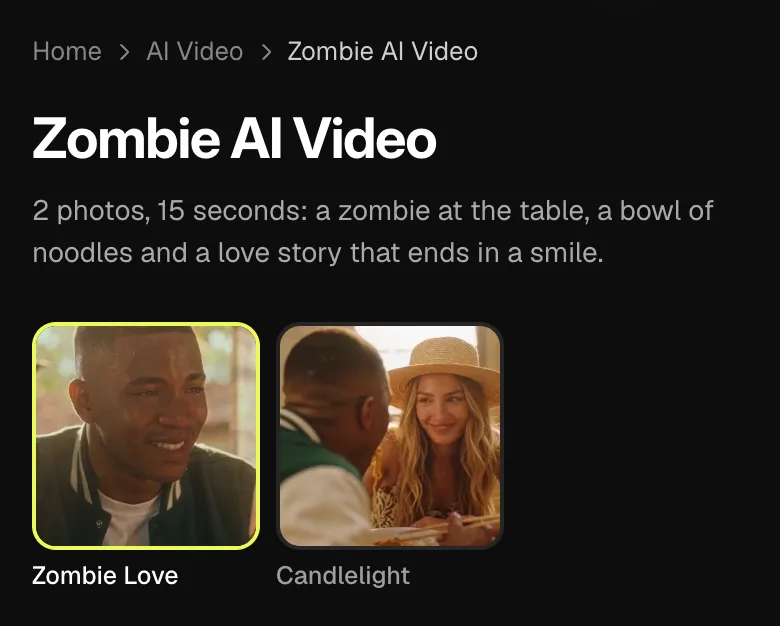
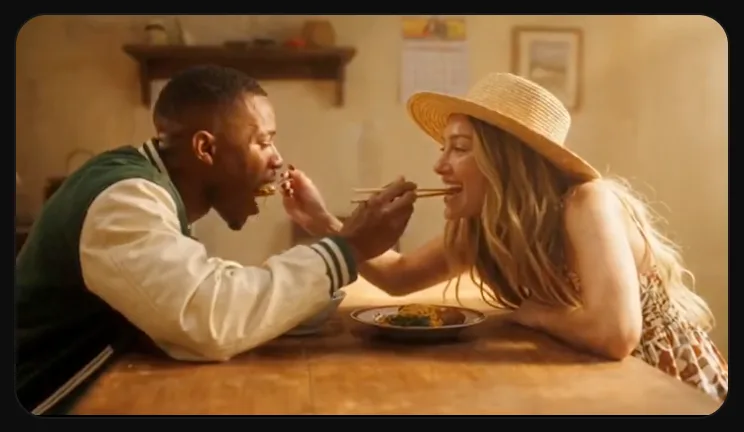
This zombie AI trend tells a small story around the question of still loving someone after they turn zombie. One adult sits over a bowl of noodles in tears. The other has grey skin and clouded eyes, sits tied to a chair at the table and leans toward it. They get fed noodles, and the ending brings back their own face and a shared smile.
The zombie has no wounds and nothing gory. The seated lean and the meal are parts of this particular sequence. The mood moves from the crying face toward a warmer ending, so watch the complete sample rather than deciding from a single zombie frame. Friends can use the two roles as a joke, as well as couples making a love-story version.
Vidlark’s template follows the trend shot for shot. You supply two adult photographs, which cast the person eating and the person who gets the zombie look. The room, table, noodles, chair and story actions come with the selected style. You do not need to stage a meal or photograph anyone with zombie makeup to prepare the inputs.
A broad zombie-video search can show outbreak scenes, crowds or a story built around a remembered embrace. For this walkthrough, use the samples to identify the noodle story before uploading. The selected template supplies the table scene and its ending; it is not a text-prompt workspace for replacing that plot with a different zombie film.
Compare Zombie Love and Candlelight
Zombie Love is the original style: a cabin by the window, noodles and tears, the zombie at the table, then warm light and a smile through the tears. Choose it if that is the version of the scene you want to make. Watch the transitions between the eating close-ups, the zombie and the ending when comparing the sample with your plan.
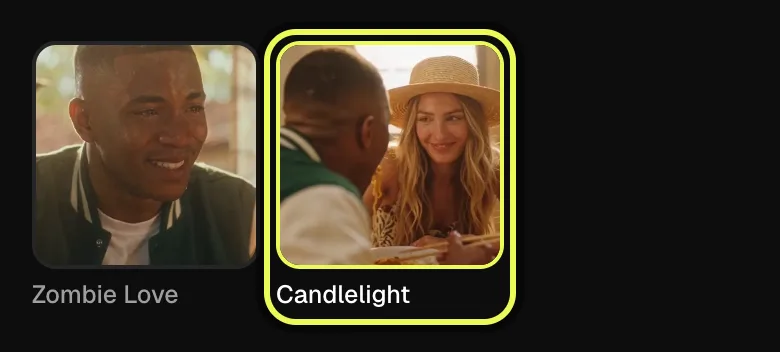
Candlelight is the variant. It uses a dimmer room and the same story, with the two adults feeding each other noodles and smiling by candlelight at the end. That final exchange is the useful distinction when choosing between the styles. It is more specific than simply asking for a darker image of the original.
Both make 15-second videos in widescreen 16:9, and both come with the trend’s sound. Switching styles changes the treatment of the scene and its ending, not the order of the photo roles. The first adult eats the noodles; the second gets the zombie look in the zombie shots and their own face again at the end. Set that casting before you start.
Prepare the eating and zombie portraits
Use two separate photographs with one adult in each. Chest-up portraits facing the camera in even light make the faces easy to check. Choose pictures without sunglasses over the eyes. The crying face, zombie look and final smile put attention on those features, so the adult’s identity should be clear before you ask the template to animate it.
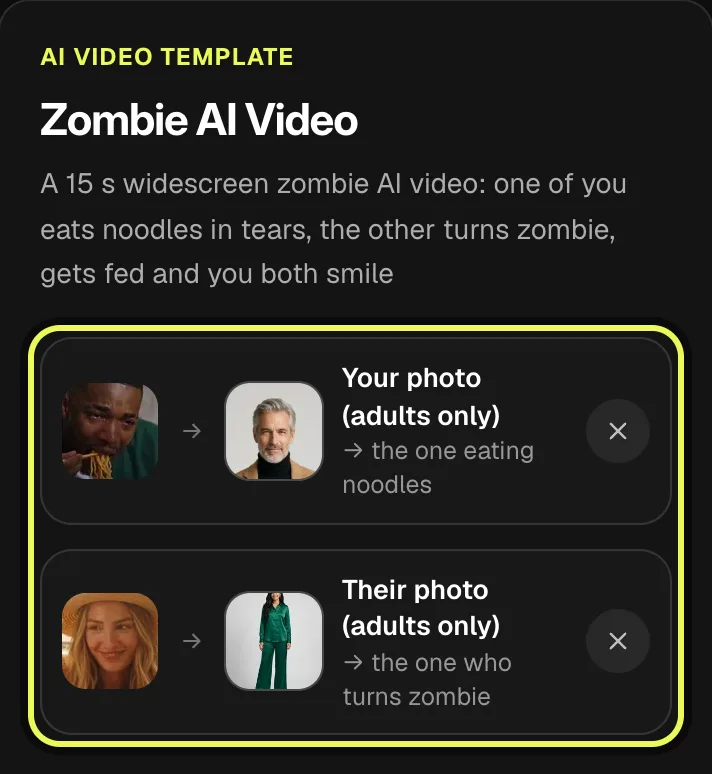
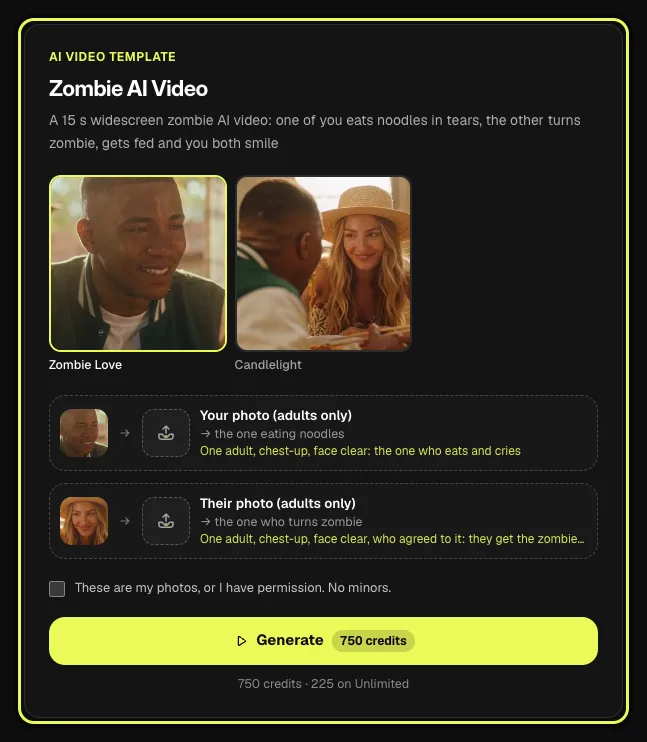
Your photo (adults only) is the one eating noodles. Their photo (adults only) is the one who turns zombie. The labels describe the two roles in this card; you can choose which consenting adult belongs in either. To exchange the casting, exchange the photographs between the slots before generating, then review the two thumbnails again.
The zombie look is added in the generated scene. Start with a normal adult photo rather than an image already covered in makeup or a face hidden in shadow. The template aims to carry over the faces and outfits from the inputs. Pay particular attention to the second adult’s original face, because that is the face you want to recognize again in the ending.
Check the widescreen result and generation time
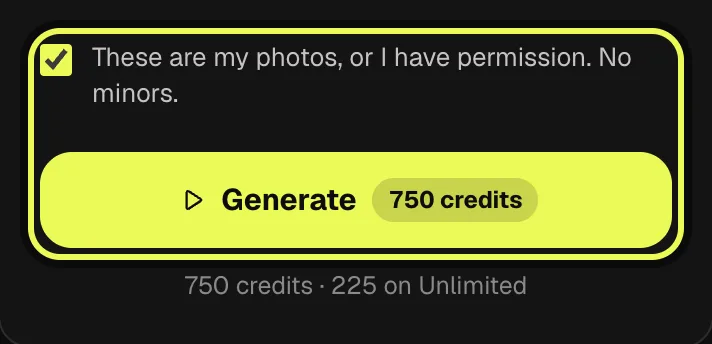
An account is required to generate. Check the cost shown on Generate for your account and selected quality, then confirm permission to use both adult photos. The price answer below uses the site’s current template pricing. Do that check after confirming the style and the two photo roles, so the generation starts with the scene you actually intend to make.
Allow about five minutes, sometimes longer. The 15 seconds describe the video’s running time, not the wait. The result is kept in My creations for review and download. The sample beside the card remains an illustration of the selected style; selecting your portraits does not turn it into a preview generated from those photos.
You can use the generation card below this guide’s steps. Open it with the make button on a phone, or use the open card on a computer. The screenshots show the matching template page, with the same style selection and photo roles. No reference video, room photo or written story prompt is needed for the supplied sequence.
How to make the zombie AI trend on Vidlark
This zombie AI video walkthrough uses Candlelight to show the variant ending. Choose Zombie Love instead if you want the original cabin version. Both use the same two photo roles. Use the generation card below the steps; the screenshots show its matching template page and finish with a separate style sample.
Step 1
Watch the story and locate the card
Look at both samples before uploading. Find the two styles and the card with Your photo (adults only) and Their photo (adults only). The generation card in this guide makes the same effect. Check the widescreen shape and decide who will eat noodles and who will get the zombie look.
Step 2
Choose the original or candlelit ending
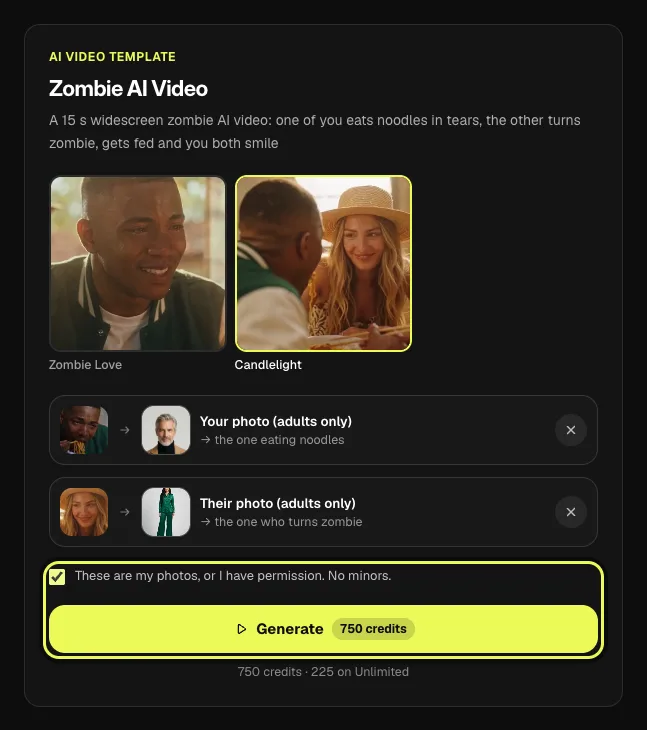
Select Candlelight, as in this walkthrough, for the dimmer room and mutual feeding at the end. Select Zombie Love for the original cabin-by-the-window treatment and smile through tears. Both are 15-second videos in 16:9 with the trend’s sound. Check the selected style before choosing your two adults.
Step 3
Fill the eating role, then the zombie role
Place the adult eating noodles in Your photo (adults only). Place the adult who turns zombie in Their photo (adults only). Check both previews for clear faces and the intended order. Use normal chest-up adult portraits; you do not need zombie makeup, noodles or a table in either input.
Step 4
Check permission and price, then Generate
Review the chosen style and both photo previews, confirm permission to use them and read the cost on Generate. Tap it when those choices are right. Allow about five minutes, sometimes longer. The finished scene is saved in My creations, while the page sample remains an example of the style.
Step 5
Review your ending and download it
Find your finished video in My creations and check the meal, the zombie’s own face returning and the selected ending. This screenshot is the Candlelight page sample, not a result from the demonstration photos. Download your result and preview the complete story with its sound before posting.
AI video template
Zombie AI Video
A 15 s widescreen zombie AI video: one of you eats noodles in tears, the other turns zombie, gets fed and you both smile
750 credits · 225 on Unlimited
Watch the faces and the change in mood
Open your own result and watch from the noodles and tears through to the smile. Check that the first photo supplied the adult eating and the second supplied the zombie. Then compare each face and outfit with the input. Review the seated movement as part of the full scene, not as a still image of someone leaning across a table.
For Zombie Love, follow the cabin scene toward the warmer light and shared smile. For Candlelight, watch the ending where the two feed each other noodles. Check the second adult after the zombie look has gone, because their own face returning helps the ending read. Small facial or clothing details can differ, so inspect both adults throughout the clip.
Keep the 16:9 composition in mind when preparing a post. The scene uses the width of the table and both people. If you crop for a taller display, preview the result through the meal and the ending so you can see whether the crop leaves out an adult or an important gesture. Retain the original widescreen file while deciding.
Download the result and finish with sound
Download the finished video from My creations. The last screenshot in this walkthrough is the page’s Candlelight sample, not the output of the demonstration portraits. It is there to illustrate the scene’s framing and ending. Your account’s saved result is the file to check when you want the version made for your two chosen adults.
The download comes with the trend’s sound. Preview the whole story with it before posting, including the ending; if TikTok flags the sound for copyright, tap Add sound and pick the same song from TikTok’s library. Check the moment the second adult returns to their own face, so the audio works with the scene’s change in mood.
For the download, videos made with a credit pack or a plan download without a watermark. A caption can explain that the meal is an AI story starring the consenting adults you selected. Check the faces, intended roles and selected ending before deciding how to share it.
FAQ
Can signup credits cover this two-photo walkthrough?
No. A template video uses 750 credits at 480p (1,500 in HD), about $10 with a credit pack. Starter and Pro plans pay half (375) and Unlimited pays 30%: 225 credits a video, about $2.25. The 100 free credits you get when you sign up are not enough for one video.
Should my second input already have zombie makeup?
Start with a clear normal adult portrait. The template adds the zombie look in those shots and brings the adult’s own face back at the end, so choose a face you can recognize throughout.
Which ending should I check when comparing the samples?
Zombie Love leads to warmer light and a smile through tears in the cabin. Candlelight ends with the two adults feeding each other noodles by candlelight. The photo roles stay in the same order.
What should stay visible if I crop the widescreen file?
Preview both adults, the bowl and the feeding gestures through the scene. A tall crop can leave out part of the table or one person, so keep the original 16:9 download while choosing a crop.
Why is the tutorial sample different from my chosen portraits?
The sample illustrates the selected style. It is separate from the demonstration uploads and from your own generated result. Review your account’s finished video in My creations to inspect the adults you selected.
Does this template make an outbreak or a memory montage?
This template makes the noodle story at the table. Zombie Love uses the cabin treatment; Candlelight has the candlelit feeding ending. Choose the sample that matches that story before generating, rather than expecting a different zombie plot from the same two slots.
Related trends
Tools you'll need
Zombie AI Video
A 15 s widescreen zombie AI video: one of you eats noodles in tears, the other turns zombie, gets fed and you both smile
Updated Oct 18, 2026