Trend guide
Flying Car AI: How to Make Both Photo-Based Styles
To make a flying car AI video on Vidlark, choose Pulled Over with one adult photo or Everyone's Flying with one car photo. Pulled Over is 15 seconds in 3:4; Everyone's Flying is 10 seconds in 9:16, with your car staying on the road. Both downloads are silent for adding sound on TikTok.
- One adult or car photo
- Pulled Over: 15 s, 3:4
- Everyone's Flying: 10 s, 9:16
Understand the two different jokes
If you found this as a Tesla flying car AI video or a Roadster joke, that discussion is the background for the meme. The two versions on Vidlark turn the idea of cars lifting off into different short scenes. One puts you behind the wheel of a car that flies away; the other keeps your own car on the road while the traffic above it flies.
The template follows the trend shot for shot. You choose the person or vehicle through a photo, then the supplied style provides the scene and action. The two uploads are alternatives, not a driver-and-car pair for one combined scene. Decide which joke you want before selecting an input, because the photo role changes with the style.
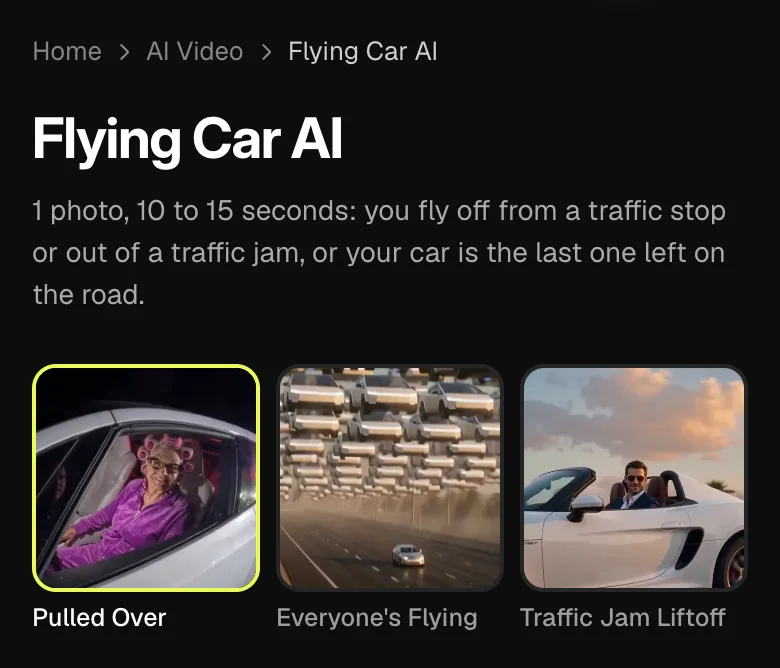
Watch both samples when planning the clip. In Pulled Over, the grin and departure complete a traffic-stop joke. In Everyone's Flying, the contrast is between the busy sky and the car still driving below. Those are different endings to look for, so a generic expectation that your uploaded car will take off can lead you to choose the wrong version.
Search results for flying cars mix vehicle announcements with generated jokes. Check the supplied sample when your aim is a short AI scene: the input role and selected style determine what this template makes. This walkthrough does not evaluate a vehicle for purchase or test whether a car can actually fly.
Match the style to its input and format
Pulled Over uses one adult photo. At night, an officer stands at the window asking for papers; the driver grins, and the car lifts off on rocket thrust through a cloud of white smoke. Your photograph supplies the driver’s face and outfit. The video is 15 seconds in 3:4, a portrait frame that is wider than the tall 9:16 option used by the other style.
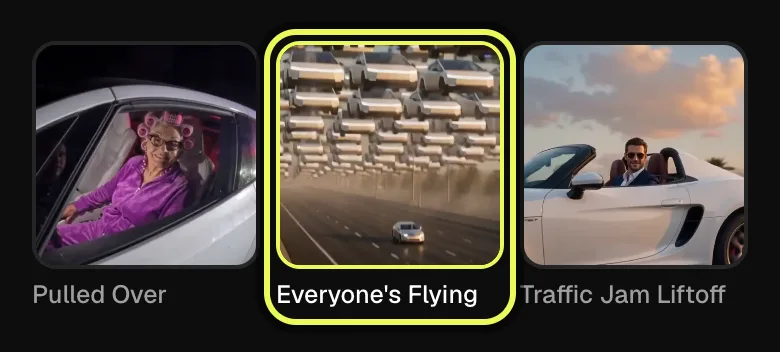
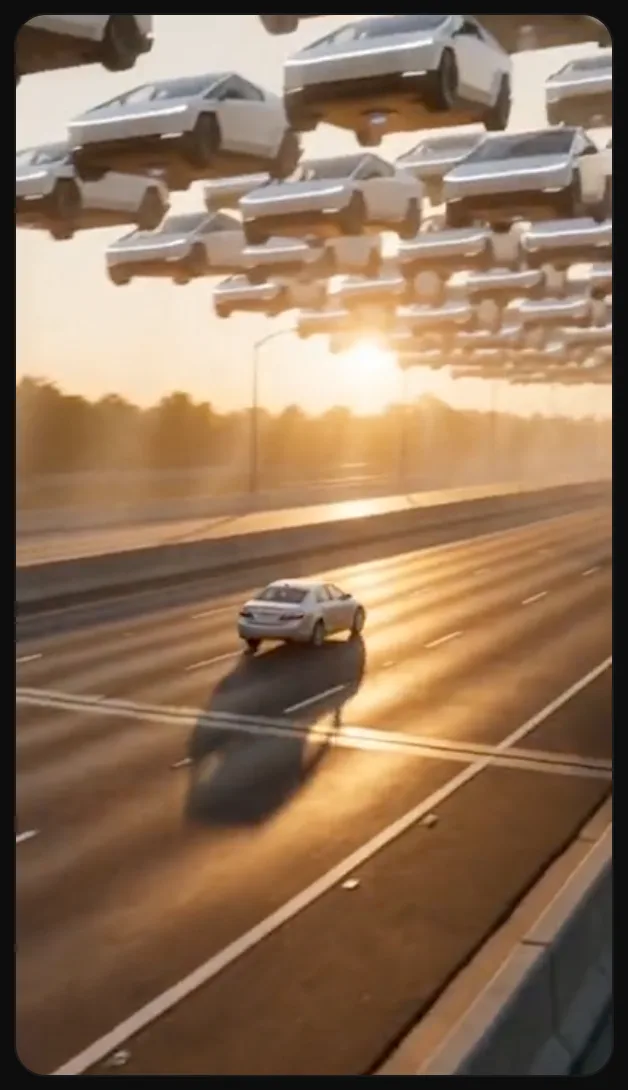
Everyone's Flying uses one photo of your car. The supplied scene is a sunset highway beneath a sky filled with flying trucks. Your car keeps driving on the empty road below. This style is 10 seconds in 9:16. Choose it when the joke is that yours is the last car still on the highway, rather than the one flying away from the officer.
The cars in the supplied scene have no badges, logos or brand marks. Judge the scene by the action and the vehicle’s visible shape, color and wheels, rather than expecting a manufacturer badge to identify it. Neither style includes sound. Choose the version for the visual story first, then add your intended audio after downloading.
Prepare a person photo or a whole-car photo
For Pulled Over, use a clear photograph of one adult facing the camera. Choose the outfit you want behind the wheel, because the driver takes the face and clothing from that input. Use your own photo or one of an adult who agreed to appear. The officer belongs to the supplied scene and does not need a second adult upload.
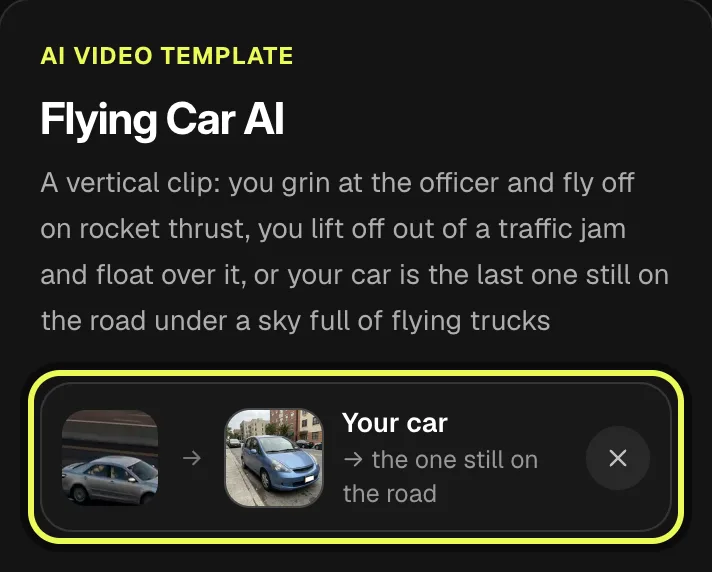
For Everyone's Flying, choose a picture of one car with the whole vehicle in frame, preferably from the front side. Make its body shape, color and wheels easy to see. This photo supplies the car that stays on the road. A close crop showing only a badge or a wheel does not show the full vehicle you are trying to place in that role.
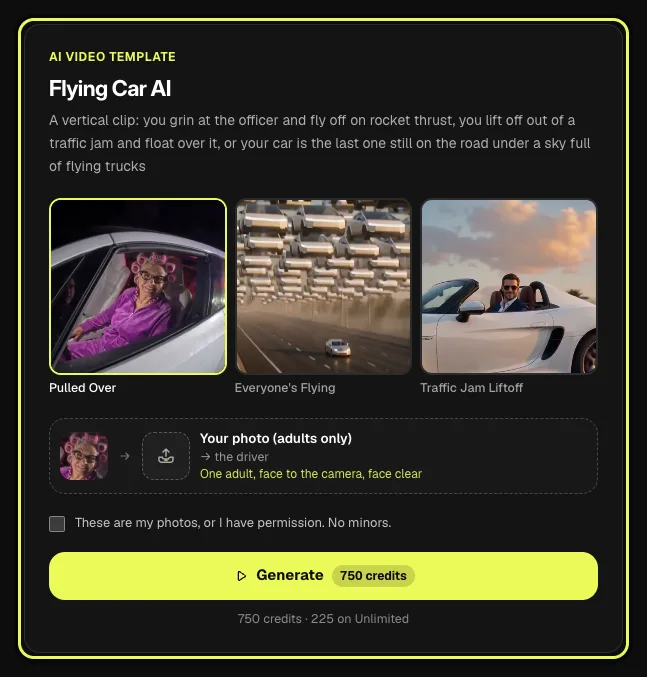
Select the style before filling the photo slot. Pulled Over shows Your photo (adults only); Everyone's Flying shows Your car. Check the active label and the preview together before continuing. If you change your mind about the scene, review the input again after switching styles so the selected file fits the role you are now trying to fill.
Use the waiting time for the selected style
An account is required to generate. Read the cost shown on Generate for your account and quality, then confirm permission to use the chosen photo. The price answer below uses the current template rule. The style’s shorter running time does not by itself tell you what your account will be charged, so read the button before starting.
For Pulled Over, allow about five minutes, sometimes longer. For Everyone's Flying, allow two to three minutes. These are generation waits; the finished clips are 15 and 10 seconds respectively. Your result is saved in My creations. The sample on the page remains an example and does not turn into a live result from your selected image.
The card below this guide’s steps makes both styles. Open its make button on a phone or use the open card on a computer. This walkthrough illustrates Everyone's Flying with a car photograph. To follow the other route, choose Pulled Over first and use the adult photo role, then apply its longer wait and 3:4 review check.
How to make a flying car AI video on Vidlark
This flying car AI walkthrough shows Everyone's Flying, using a car photograph. Pulled Over follows the same price-and-permission flow with one adult photo instead. Use the card below the steps, select the style first and check the matching photo label before generating either version.
Step 1
Compare the driver scene and highway scene
Watch both samples and find the style choices above them. Look for the traffic stop in Pulled Over and the car staying below flying trucks in Everyone's Flying. The card below this guide makes the same effect. Choose the action you want before deciding whether to use an adult portrait or a vehicle photograph.
Step 2
Select Everyone's Flying for a car photo
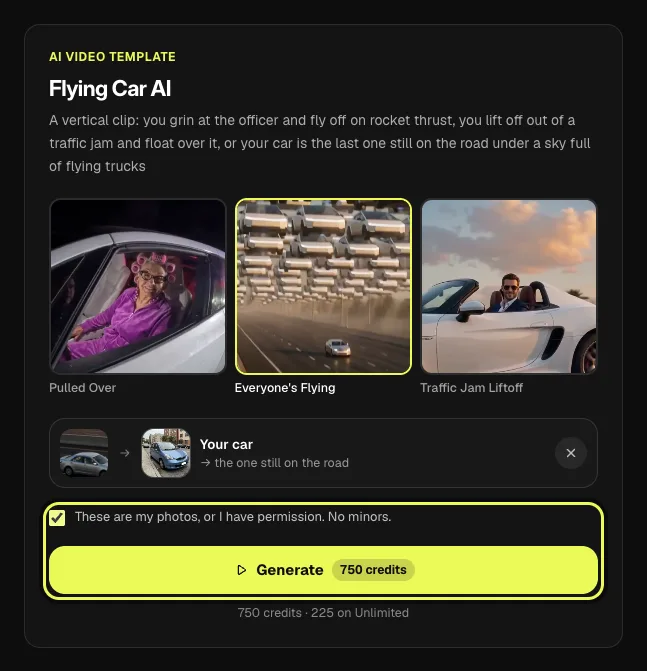
Choose Everyone's Flying to follow this walkthrough. It uses one car photo and makes a 10-second video in 9:16. If you want the adult driver to grin and fly away from the traffic stop instead, choose Pulled Over, which uses one adult photo and makes a 15-second 3:4 clip.
Step 3
Upload the input for the selected role
For this route, select your vehicle in Your car and check that the preview shows the whole car. For Pulled Over, use Your photo (adults only) for the adult driver. The two styles use different roles; you are selecting one photo for the chosen scene, not combining a driver and a vehicle upload.
Step 4
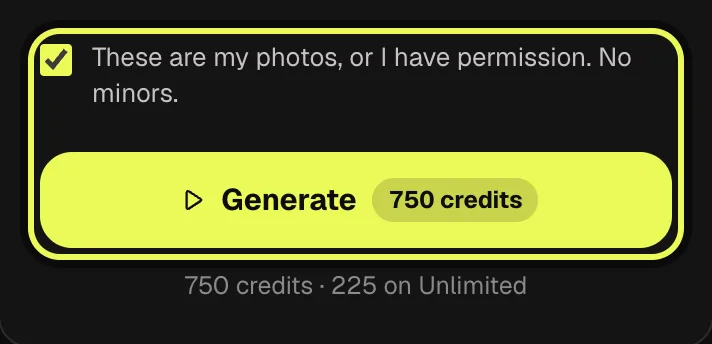
Read the cost, confirm permission and Generate
Check the selected style and input, confirm permission and read the cost on Generate. Tap it when those choices are right. Allow two to three minutes for Everyone's Flying. For the 15-second Pulled Over version, allow about five minutes, sometimes longer. Your finished result is saved in My creations.
Step 5
Review the action, download and add sound
Open your own result in My creations, check the vehicle action and download it. This screenshot is the Everyone's Flying page sample, not a result from the demonstration car photo. Add sound on TikTok and preview the full clip. In this style, your car should stay on the road while the trucks fly above it.
AI video template
Flying Car AI
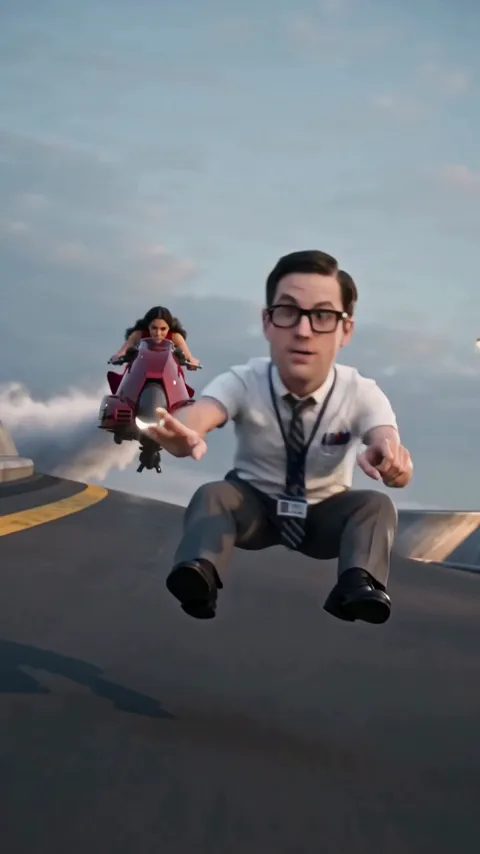
A vertical clip: you grin at the officer and fly off on rocket thrust, you lift off out of a traffic jam and float over it, or your car is the last one still on the road under a sky full of flying trucks
750 credits · 225 on Unlimited
Review the right vehicle action
For Everyone's Flying, watch the full ten seconds and check the car on the road. Compare its color, body shape and wheels with your input. Then watch the traffic in the sky and the sunset setting. The uploaded car staying on the road is the intended action of this style, so inspect that contrast instead of looking for it to lift off.
For Pulled Over, check the adult’s face and clothes at the window, the grin and the car’s departure through white smoke. Watch both the interaction and the lift-off in motion. A still picture of the driver does not show how the joke plays out, and a final frame alone leaves out the expression that sets up the departure.
Download your own finished video from My creations. The last screenshot here is the Everyone's Flying page sample, not the output of the demonstration car upload. It illustrates the composition. Your saved result is the version to compare with the person or car you selected, and it is the file to use when preparing your post.
Finish the clip with sound and the right framing
Both downloads are silent. On TikTok, upload your finished result, tap Add sound and choose the audio for your post. Preview the traffic stop or the road-and-sky contrast with that sound before sharing it. Selecting a car or adult photo on Vidlark does not select a soundtrack, engine effect or spoken exchange for the download.
Keep the original frame while reviewing a crop. Pulled Over is 3:4, while Everyone's Flying is 9:16. Check the officer, driver and departure for the former; check the road car and flying trucks for the latter. A crop can change how much of that contrast remains visible. For the download, videos made with a credit pack or a plan download without a watermark.
FAQ
Are signup credits enough for either walkthrough?
No. A template video uses 750 credits at 480p (1,500 in HD), about $10 with a credit pack. Starter and Pro plans pay half (375) and Unlimited pays 30%: 225 credits a video, about $2.25. The 100 free credits you get when you sign up are not enough for one video.
Which input should I prepare before opening the card?
Prepare one adult photo for Pulled Over or one whole-car photo for Everyone's Flying. Choose the style first, then use its matching slot. These are alternatives for two different scenes.
Why is my chosen car still on the highway?
That is the action of Everyone's Flying. Your uploaded car stays on the road while the sky fills with flying trucks. Pulled Over is the separate scene where the driver’s car lifts off.
What should I review after switching styles?
Check the photo role, selected file, running time and frame. Pulled Over uses an adult, 15 seconds and 3:4. Everyone's Flying uses a car, 10 seconds and 9:16. Apply the waiting time for the version you chose.
Does the officer need a separate portrait?
No. Pulled Over uses one adult photograph for the driver. The officer and traffic-stop scene are supplied by the template, so there is no second adult photo to fill for that interaction.
Does a generated clip prove that a vehicle can fly?
No. A result made here is a generated scene from your selected photo. Use it as a creative video, not as evidence of a real vehicle test or a vehicle’s flight capabilities.
Related trends
Tools you'll need
Flying Car AI
A vertical clip: you grin at the officer and fly off on rocket thrust, you lift off out of a traffic jam and float over it, or your car is the last one still on the road under a sky full of flying trucks
Updated Oct 18, 2026
Tesla and Roadster are trademarks of Tesla, Inc. Vidlark is not affiliated with or endorsed by Tesla.