Model guide
How to Use Seedance: 2.5 and 2.0 on Vidlark
To use Seedance on Vidlark, choose 2.5 or 2.0, enter a prompt or upload an adult photo, select the video settings and tap Generate. Seedance is ByteDance’s video model for motion, reference-guided scenes and audio. Review the finished clip in My creations before downloading it for your project.
- Step-by-step
- Credit planning
- Image to video
Our example
Choose a version for the shot
Learning how to use Seedance starts with deciding what one shot should accomplish. An adult turning toward a window is a useful first exercise: the face, clothing, direction of movement and camera can each be checked. A single shot gives you a clearer decision than asking for a whole story before you have seen the person move.
Vidlark offers Seedance 2.5 and 2.0 as separate model choices. Both provide Text, Image and Reference workflows. Both versions require an account that has bought a plan or credit pack. Start with 2.5 when you want its longer duration choices or reference controls. Compare 2.0 when a shorter shot meets the brief. Keep the source photo and intended action the same when judging the alternatives.
Choose Image when the starting appearance and composition matter. Text creates a scene from your description. Reference is for guiding a new scene with supplied material, rather than simply animating one opening image. You do not need to fill every available input to make a first clip. Choose the workflow that matches the material you actually have.
Prepare the image and describe movement
Use one clear photograph of an adult who agreed to appear. Leave room around the shoulders and hands if they will move. A face partly hidden by hair or a foreground object gives you less to inspect in the result. Crop the source for the intended composition before using it as the start frame.
Write the action in sequence: the adult turns slightly toward the window, pauses, then looks toward the camera. Add one camera instruction, such as a slow move forward. Describe the desired lighting and what should remain consistent. A prompt that asks for several scene changes can make it harder to identify which instruction needs revision.
An optional end frame can describe a destination for the shot. Use it when you have a clear visual endpoint, rather than adding another picture just because the slot exists. In Reference mode, label the role of each input in the prompt. Keep the subject reference and the scene reference easy to tell apart.
Choose length, quality and sound
On Vidlark, Seedance 2.5 offers 480p, 720p and 1080p with lengths of 5, 10, 15, 20 or 30 seconds. Seedance 2.0 offers those resolutions with 5, 10 or 15 seconds. Begin with a short motion check. Increase the duration when the action needs more time, rather than assuming that a longer clip will repair an unclear instruction.
Use 480p to assess the movement before paying for a larger rendition. Consider 720p or 1080p when faces, clothing and the intended display need closer inspection. Resolution changes do not establish that the action is correct. Review the pose and camera first, then decide whether the same shot deserves another generation at a higher setting.
Text mode provides aspect ratio choices; with an image, the source determines the frame. Prepare a tall photo for a tall shot or a wide one for a wide shot. Generate audio is a separate switch. It starts on and adds no credits on Seedance, so the clip comes back with ambient sound; describe the desired speech and ambience when sound matters, or turn it off for a silent clip. Listen to the actual output before relying on it.
How to use Seedance on Vidlark
This walkthrough explains how to use seedance with a specific first exercise. Work through model selection, inputs, output settings and the account price before starting. The final step is your own saved result in My creations. Keep its prompt and settings with the download so a later revision has a clear reference.
Step 1
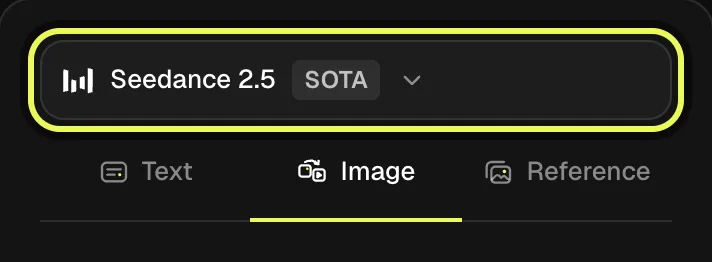
Choose Seedance and the Image workflow
Open the Seedance 2.5 model page and check the model name above the form. Choose Image for this portrait exercise. You can switch to Seedance 2.0 for a separate comparison later. Keep the first test focused on one adult and one camera move so the result has a clear purpose.
Step 2
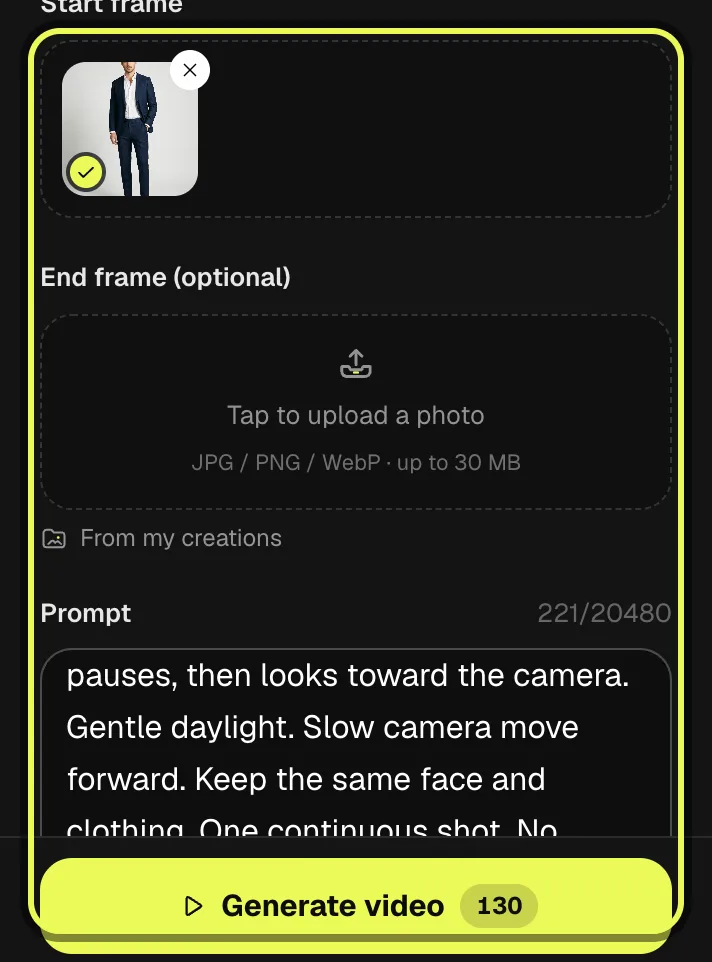
Add the start frame and motion prompt
Select your consenting adult’s photo in Start frame. Check the preview and paste the example prompt below into Prompt. Leave the optional end frame empty for this exercise. The image supplies the starting appearance; your words describe the turn, lighting and camera movement that should follow.
Step 3
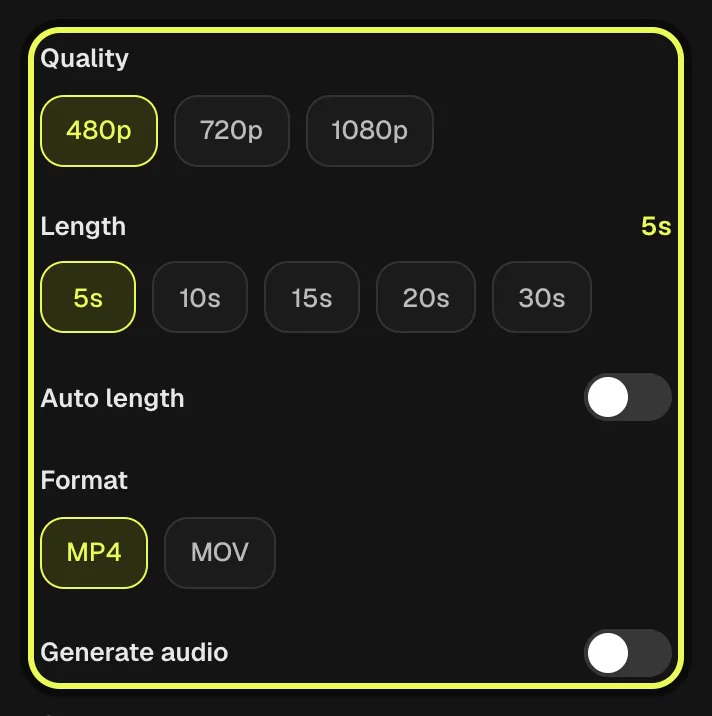
Set a short visual test
Choose 480p and 5s for the initial motion check. Leave Generate audio on, as our example did, and review the frame supplied by the image. Before using a reference video or changing to a longer output, read the changed amount on Generate rather than reusing the earlier estimate.
Step 4
Review the account price and Generate
Sign in, confirm the model, uploaded image and selected settings, then read the credit amount on Generate. Start the job when those choices match your brief. You can prepare notes while it processes, but wait for the current video task to finish before starting another video from this account.

Step 5
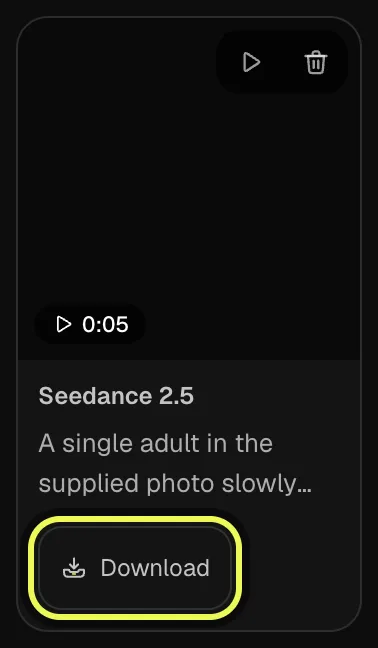
Inspect and download from My creations
Open My creations and find your own finished Seedance job. Watch the face and camera through the whole turn, then use Download on that result. Save the prompt and settings beside the file. If the shot needs revision, adjust one instruction and make a separate version for comparison.
Our example
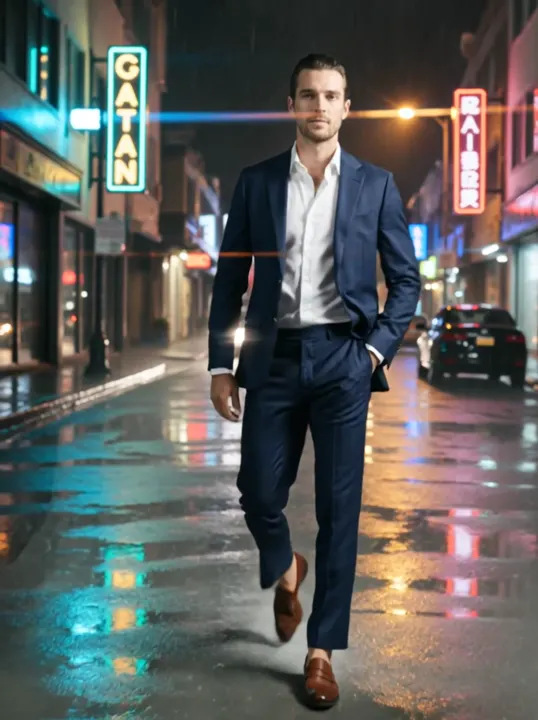
The clip at the top of this page is one run on Vidlark, made with the photo shown in step 2 and the prompt below: Seedance 2.5, Image, 480p, 5s. Use your own photo of an adult who agreed to appear; the link opens the workspace with the same prompt and settings.
Prompt
A single adult in the supplied photo slowly turns toward the window, pauses, then looks toward the camera. Gentle daylight. Slow camera move forward. Keep the same face and clothing. One continuous shot. No scene changes.
- Seedance 2.5
- Image
- 480p
- 5s
Add references only when they serve the brief
The Reference workflow accepts images and, where shown, video and audio inputs. Start with a small set that has distinct roles. Several nearly identical pictures can make it harder for you to explain what each is meant to contribute to the scene. The current limit on Vidlark is 8 reference images.
Video reference support differs between versions. Read the accepted file limits beside the upload controls before selecting a clip. Seedance reference video input adds billable seconds as well as the output length. The simple price examples in this guide exclude reference video, so check the updated Generate amount after attaching one. Do not treat that table as a quote for a reference-heavy job.
An audio reference needs a visual input in the Reference workflow. Use material you have permission to use and give it a clear purpose. For a first exercise, a still adult portrait and a short motion prompt are enough to check the workflow without adding several input types and extra billing conditions at the same time.
Review the shot before extending it
Play the finished clip from beginning to end in My creations. Check the face during the turn, the outline of the shoulders, the hands and the background edges. Watch whether the camera movement matches your instruction. A clean first frame is useful, but it does not establish that the motion remains suitable throughout the shot.
If the person turns too far, narrow the action in the prompt. If the frame feels crowded, adjust the input crop before the next generation. Change one decision at a time so that the result tells you something. Keep the prompt and settings with the download when comparing 2.5 and 2.0 for the same project.
Vidlark lets you compare the listed models within one account and workspace flow. Paid plans offer priority processing, while rendering still takes time and video tasks run one at a time per account. Sign in before generating and read the current button amount. Videos made with a credit pack or a plan download without a watermark.
Plan the credit budget before generating
The table shows current Vidlark list prices and the selected monthly plans’ credit amounts for one output at a time. Seedance 2.5 at 480p for 5 seconds uses 200 credits at list price. Read the amount on Generate for your account before starting, especially after changing quality, duration, audio or the number of images.
Starter billed monthly costs $29.99 and provides 3,000 credits: at 200 credits each, that is about 15 clips. Pro billed monthly costs $89.99 and provides 10,000 credits: at 160 credits each, that is about 62 clips. These estimates spend the whole monthly allowance on the first setting in the table, with no other use. They round down to whole outputs; they are a planning calculation, not a promise that every attempt will be a usable final take.
Reserve part of the allowance for revisions. The video examples exclude reference-video input; Seedance can bill that input in addition to output duration. A longer reference or a changed output format can therefore change the amount. Compare the amount for the actual job with the budget you have left before continuing.
| Model | Selected format | List credits | Starter credits | Pro credits |
|---|---|---|---|---|
| Seedance 2.5 | 480p · 5s | 200 | 200 | 160 |
| Seedance 2.5 | 720p · 5s | 400 | 400 | 320 |
| Seedance 2.5 | 1080p · 5s | 1000 | 1000 | 800 |
| Seedance 2.0 | 480p · 5s | 125 | 125 | 100 |
| Seedance 2.0 | 720p · 5s | 275 | 275 | 220 |
| Seedance 2.0 | 1080p · 5s | 650 | 650 | 520 |
FAQ
What is a useful first Seedance exercise?
Animate one consenting adult portrait with a small head turn and a single camera move. It gives you a practical way to inspect identity, movement and framing before adding multiple scenes. A shorter test also makes the decision to spend more on a longer shot easier to explain.
Can this workflow run locally on my computer?
This walkthrough uses Vidlark in your browser. You select inputs and settings there, then collect the processed result in My creations. It is not an installation guide for running the model on your computer, and you do not need to prepare a local model download for these steps.
When should I move from 2.0 to 2.5?
Consider 2.5 when its longer output choices or reference controls serve the shot. For a short scene, compare the same photo and motion prompt on each version before deciding. Judge the saved outputs and selected credit amounts rather than treating the version number as a guarantee of a better take.
Does a photo reference include a soundtrack?
A photograph does not supply a soundtrack. Use the Generate audio setting and describe the audio when it is part of the brief. Check the finished file with sound enabled. For an external music track, add material you have permission to use during your own editing process.
What credit allowance does a new account receive?
New accounts receive 100 signup credits; model access and the selected run price still apply.
Related models



Tools you'll need
Seedance 2.5
Made by ByteDance. Vidlark is an independent platform and isn't affiliated with ByteDance.
Updated Oct 20, 2026