Model guide
How to Use Kling AI: Video and Motion Control
To use Kling AI on Vidlark, select Kling 3.0, add a prompt or adult photo, choose quality and length, then Generate and download from My creations. Kling is Kuaishou’s video model for directed motion and optional audio. Motion Control uses a character photo and a reference video for a different workflow.
- Step-by-step
- Credit planning
- Image to video
Our example
Choose image animation or Motion Control
If you are learning how to use Kling AI for a portrait shot, start with Kling 3.0 in Image mode. A photo supplies the opening appearance, and your prompt directs the action. This is useful for a gesture, a small turn or a camera move when you can describe the intended motion in ordinary words.
Motion Control has a different job. It takes an adult character image and a reference video that shows the movement. Choose it when the specific movement matters more than inventing an action from a prompt. A written instruction alone does not replace the reference clip that this workflow requires.
Decide which input you can prepare well before choosing a model. For the five-step demonstration, use Kling 3.0 and one still portrait. Later, compare a controlled movement with a reference video you own or have permission to use. Keep that separate experiment labeled so you do not mistake a text-directed shot for a motion transfer.
Give one action a clear sequence
Choose a clear adult photo with the relevant body parts visible. If the action is a small wave, include the arm and hand rather than using a face-only crop. Avoid asking a hidden hand to perform the main part of the shot. The input should give you a useful starting point for assessing the movement.
Describe who moves, what moves and how the camera behaves. For example, ask the person to raise one hand in a small wave while the camera stays still. Add a brief lighting description and ask to retain the face and clothing. This makes the intended result easier to judge than a list of unrelated cinematic adjectives.
For an image-led shot, concentrate the words on movement instead of repeating every visible detail of the photograph. If you want an end frame, supply one deliberately in the optional slot. Think about how the starting and ending poses could connect. Conflicting poses or an unexplained new background can make the brief harder to follow.
Choose the frame, length and audio setting
Kling 3.0 on Vidlark offers 720p and 1080p, each with an audio-enabled option. The available output lengths are 5, 10 and 15 seconds. Start with five seconds when the brief is one gesture. Choose a longer duration when the action itself needs room, rather than adding time to a shot that lacks a clear instruction.
Text mode offers 16:9, 9:16 and 1:1. In the Image workflow, framing follows the source image, so crop that source to suit the planned use before selecting it. A wide portrait and a tall portrait give the shot different room for hands and camera movement. Check the preview rather than assuming the aspect ratio has stayed the same after a mode change.
Turn Generate audio off for the silent demonstration, then compare the audio-enabled price if your project needs sound. Describe the desired dialogue or ambience in the prompt when using that setting. The existence of an audio option does not establish that a particular line, voice or sound has come out as intended; listen to the saved result.
How to use Kling AI on Vidlark
This walkthrough explains how to use kling ai with a specific first exercise. Work through model selection, inputs, output settings and the account price before starting. The final step is your own saved result in My creations. Keep its prompt and settings with the download so a later revision has a clear reference.
Step 1
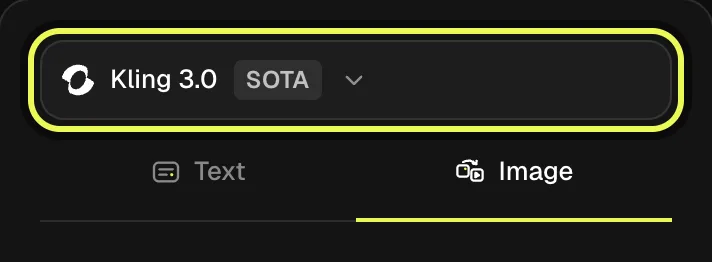
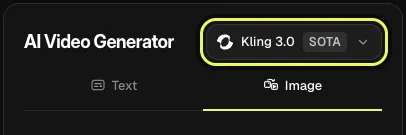
Select Kling 3.0 and Image
Open the Kling 3.0 page and confirm the model shown above the form. Select Image for this exercise. Motion Control is a separate model with a reference-video requirement, so keep it for the later workflow described below. The first shot uses one adult photo and a short hand gesture.
Step 2
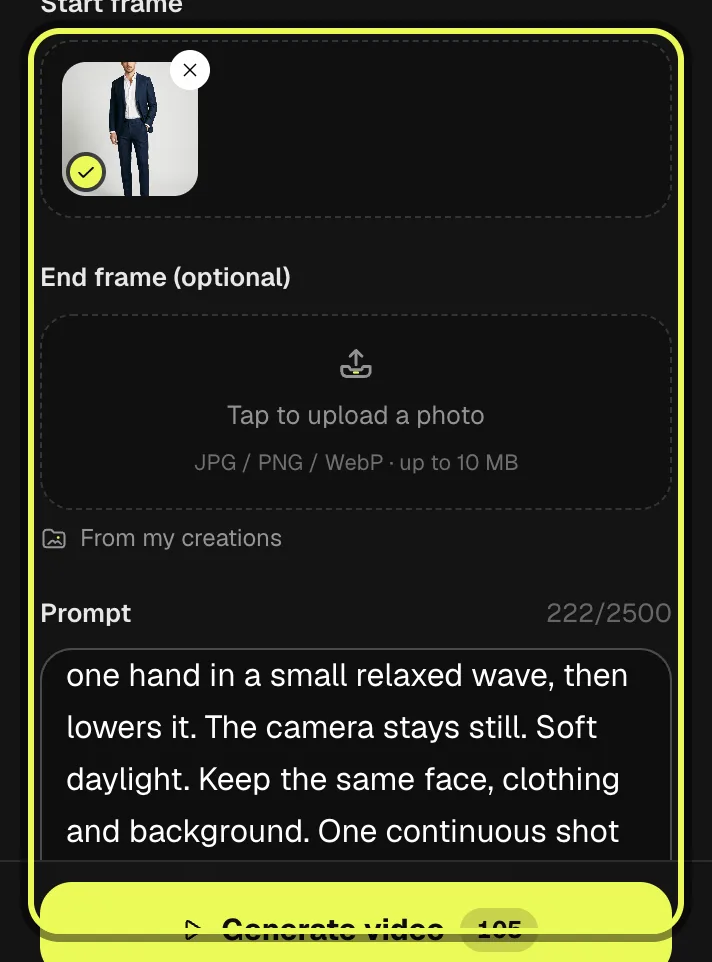
Upload the adult photo and write the action
Choose the photo in Start frame and inspect the preview for the face, shoulder and hand area. Paste the example prompt into Prompt. Leave the optional end frame empty for this test. Ask for one small wave with a still camera so you can judge both the person and the movement.
Step 3
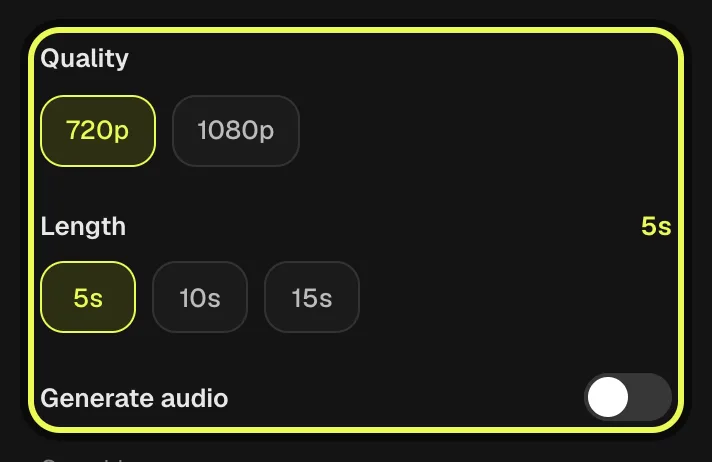
Choose a five-second silent test
Select 720p and 5s, with Generate audio off. Check the image crop because it supplies the frame. If you need sound for a later take, enable audio and review the changed credit amount before generating. Resolution, length and audio are separate decisions that should follow the planned use.
Step 4
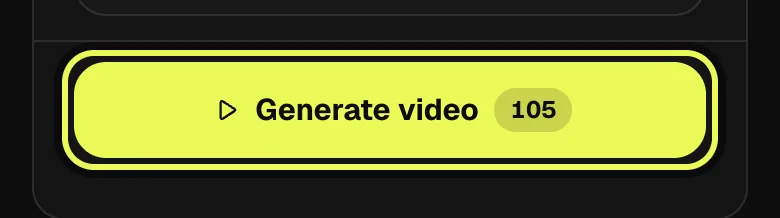
Check the settings and tap Generate
Sign in and read the current credit amount on Generate. Verify that the selected file and prompt belong to this shot, then start it. Wait for the account’s current video job to finish before requesting another. The screenshot highlights the button but does not require you to start a job just to inspect the setup.
Step 5
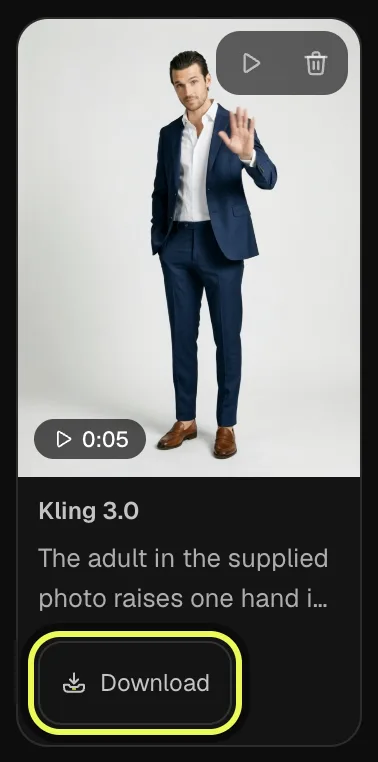
Review the gesture and download
Find your finished job in My creations. Watch the full wave and check the fingers, wrist and face through the movement. Download that result when it suits the brief. Keep the settings with the file so a second take can change one instruction without losing the comparison.
Our example
The clip at the top of this page is one run on Vidlark, made with the photo shown in step 2 and the prompt below: Kling 3.0, Image, 720p, 5s. Use your own photo of an adult who agreed to appear; the link opens the workspace with the same prompt and settings.
Prompt
The adult in the supplied photo raises one hand in a small relaxed wave, then lowers it. The camera stays still. Soft daylight. Keep the same face, clothing and background. One continuous shot with a calm natural movement.
- Kling 3.0
- Image
- 720p
- 5s
Prepare a Motion Control experiment
Kling 3.0 and Motion Control require an account that has bought a plan or credit pack. On the Motion Control page, the two required inputs are Motion video and Character image. Use an adult character image with a readable pose and a reference clip in which the action is easy to see. The reference controls the movement; it does not give you permission to reuse someone else’s performance or appearance.
Character faces offers Like the video and Like the photo. Choose the orientation that fits the intended transfer, then inspect the full result for body direction and framing. The output length follows the reference video in this workflow. Do not look for the same manual length behavior used by the ordinary Kling 3.0 demonstration.
Motion Control offers 720p and 1080p on Vidlark. Its credit calculation depends on the reference duration and selected quality. The short example in the price table is a five-second reference, not a statement that every uploaded clip becomes five seconds. Read the updated amount after the video has been inspected by the form.
Keep complex controls for a second exercise
Kling 3.0 also exposes multi-shot and element controls on Vidlark. Multi-shot lets you describe separate parts of a sequence; elements give named visual references a role. Use these when a single-shot test has already shown you what the person, movement and framing should look like. More controls are useful when they solve a specific problem in the brief.
Review a generated wave at normal speed and then look closely at the hand, wrist, face and sleeve. If the camera moved when you wanted it still, narrow that instruction before increasing resolution. Compare two takes using the same criterion, such as whether the hand stays readable, rather than choosing only the most attractive opening frame.
Sign in before generating and check the current amount on Generate. Vidlark keeps the model choices and saved results in one account, which makes side-by-side project comparisons easier to organize. Paid plans offer priority processing, but video jobs run one at a time per account and completion time varies. Videos made with a credit pack or a plan download without a watermark.
Plan the credit budget before generating
The table shows current Vidlark list prices and the selected monthly plans’ credit amounts for one output at a time. Kling 3.0 at 720p for 5 seconds uses 175 credits at list price. Read the amount on Generate for your account before starting, especially after changing quality, duration, audio or the number of images.
Starter billed monthly costs $29.99 and provides 3,000 credits: at 175 credits each, that is about 17 clips. Pro billed monthly costs $89.99 and provides 10,000 credits: at 140 credits each, that is about 71 clips. These estimates spend the whole monthly allowance on the first setting in the table, with no other use. They round down to whole outputs; they are a planning calculation, not a promise that every attempt will be a usable final take.
Reserve part of the allowance for revisions. The video examples exclude reference-video input; Seedance can bill that input in addition to output duration. A longer reference or a changed output format can therefore change the amount. Compare the amount for the actual job with the budget you have left before continuing.
| Model | Selected format | List credits | Starter credits | Pro credits |
|---|---|---|---|---|
| Kling 3.0 | 720p · 5s | 175 | 175 | 140 |
| Kling 3.0 | 720p · audio · 5s | 250 | 250 | 200 |
| Kling 3.0 | 1080p · 5s | 225 | 225 | 180 |
| Kling 3.0 | 1080p · audio · 5s | 300 | 300 | 240 |
| Kling 3.0 Motion Control | 720p · 5s | 160 | 160 | 128 |
| Kling 3.0 Motion Control | 1080p · 5s | 215 | 215 | 172 |
FAQ
How do I use Kling AI for an image-to-video shot?
On Vidlark, choose Kling 3.0 and Image, select a clear adult start frame and describe the movement. Pick quality, length and audio, then read the Generate amount before starting. Review your saved result in My creations and download it after checking the action through the full clip.
Do I need a dance video for the portrait exercise?
No reference video is needed for the ordinary Image exercise in this guide. The words direct a small wave from a still start frame. Motion Control requires a movement reference video as well as a character image; use that separate workflow when transferring a specific performance is the purpose.
Can I run these steps locally?
These steps use Vidlark’s browser workspace and saved creations. They do not install Kling on your computer. Prepare the image and any permitted reference material locally, then use the page controls to submit the job and collect the processed result from your account.
Should I buy more resolution before changing the prompt?
Check the action first. A larger output does not fix an unwanted camera move or an unclear gesture by itself. Revise the instruction or source crop, inspect a short test, then decide whether the same scene is worth another generation at the higher quality setting.
What credit allowance does a new account receive?
New accounts receive 100 signup credits; model access and the selected run price still apply.
Related models


Tools you'll need
Kling 3.0
Made by Kuaishou. Vidlark is an independent platform and isn't affiliated with Kuaishou.
Updated Oct 20, 2026