Model guide
How to Use Nano Banana: Edit Images on Vidlark
To use Nano Banana on Vidlark, choose 2.1 or Pro, write an image prompt or upload a photo to edit, select size and aspect ratio, then Generate. Nano Banana is Google’s image model family for generation and reference-based edits. Inspect the finished image in My creations before downloading your selected version.
- Step-by-step
- Credit planning
- Image generation and editing
Our example
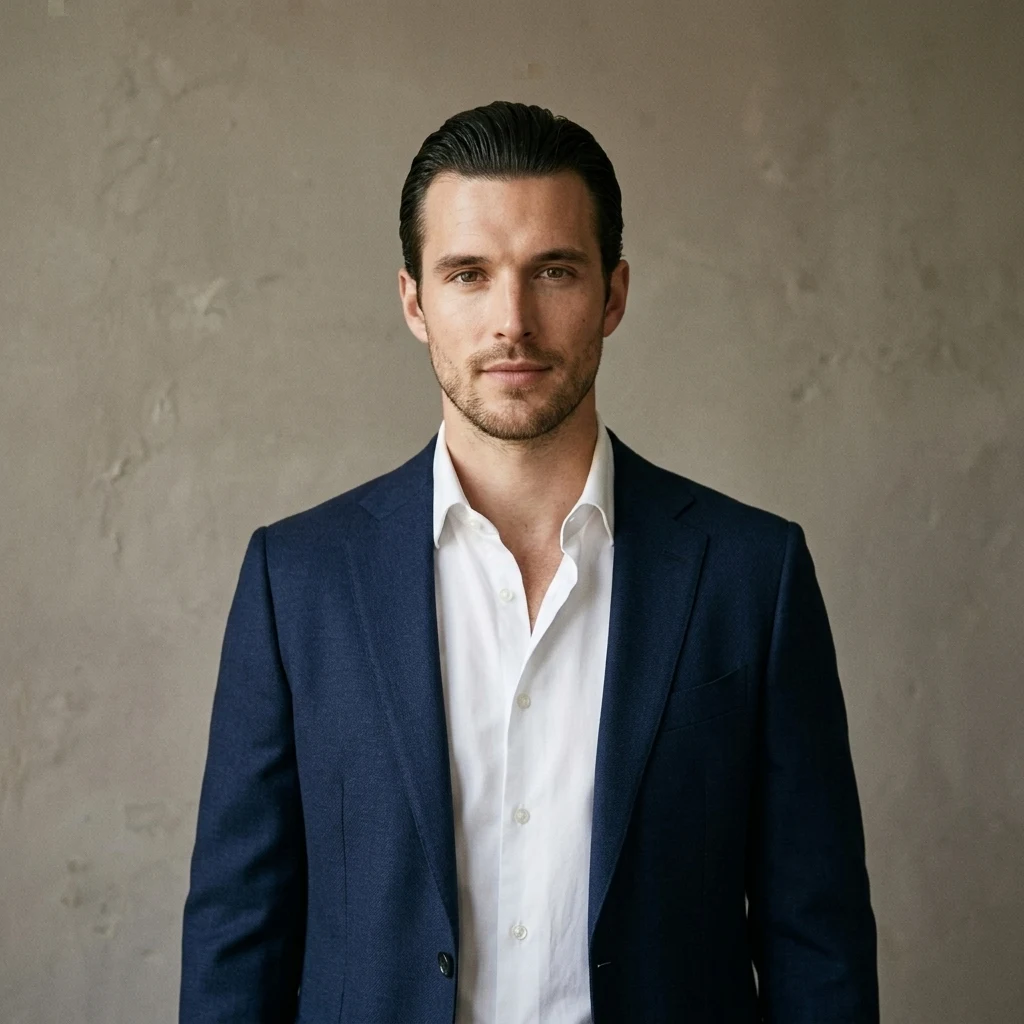
Start with one clear image task
Learning how to use Nano Banana is easier when the brief names one visible change. For this exercise, keep an adult portrait and move the person into a simple studio setting. You can check the face, clothes, lighting and background without also trying to solve a complicated layout or several unrelated edits.
Nano Banana 2.1 and Nano Banana Pro are separate model choices on Vidlark. Pro requires an account that has bought a plan or credit pack. Both have text generation and image editing workflows with 1K, 2K and 4K output options. Compare them with the same source and instruction when choosing a version for your project. Read the selected price rather than assuming that the Pro name means every setting has the same cost difference.
Use Text when you want a new image from a written brief. Choose Image to Image when a supplied photograph should guide the result. An edit can still change details you wanted to retain, so state those details explicitly and inspect them afterward. The source image is a reference for the task, not a promise that every visible feature will be preserved.
Make the reference and prompt work together
Select a photograph of a consenting adult with a visible face and clear clothing. Start with an image whose framing is close to the intended result. A crowded group photo adds decisions about which person matters, while a single-person portrait gives the edit a clearer subject. Crop away unrelated content before selecting the file when it distracts from the brief.
Describe the requested change in ordinary terms: replace the background with a warm gray studio wall and soften the light. Then name the features to retain, such as the adult’s face, hairstyle and jacket. Give the model a clear positive description of the target scene instead of relying on a long list of unwanted outcomes.
For a layout, specify where the subject sits and where space should remain for later text. For a photo edit, explain whether the crop should stay close to the original. Keeping those directions distinct makes a revision easier: you can change the setting without rewriting the person’s appearance or asking for a different composition at the same time.
Choose resolution and aspect ratio for the deliverable
Both versions offer 1K, 2K and 4K on Vidlark. Use a 1K test to judge the composition and requested edit, then choose a larger output when the delivery needs closer detail. Moving up in resolution does not prove that the face, hands or small text are correct. Check those parts before spending another generation on a larger rendition.
Choose an aspect ratio that suits the project. A square composition can fit a profile card, a tall one can leave room around a standing adult, and a wide one can provide space beside the subject. Auto is also available. Review the selected ratio after changing modes so you know whether you are asking to retain the source shape or build a different frame.
Use the preview to check that the important features have room in the requested shape. If a tall edit cuts off a jacket or a wide edit leaves the face too small, revise the crop or composition instruction before the next attempt. The useful setting is the one that serves the planned placement, rather than the largest option by default.
How to use Nano Banana on Vidlark
This walkthrough explains how to use nano banana with a specific first exercise. Work through model selection, inputs, output settings and the account price before starting. The final step is your own saved result in My creations. Keep its prompt and settings with the download so a later revision has a clear reference.
Step 1
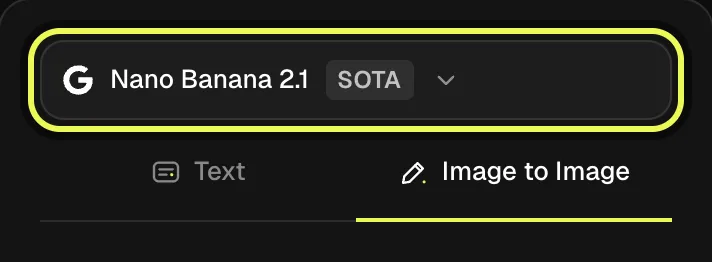
Choose Nano Banana 2.1 and editing
Open the Nano Banana 2.1 page and confirm the model name above the form. Select Image to Image for the portrait exercise. Use Text instead when you want a new image without a reference. You can compare Pro afterward using the same input and requested background change.
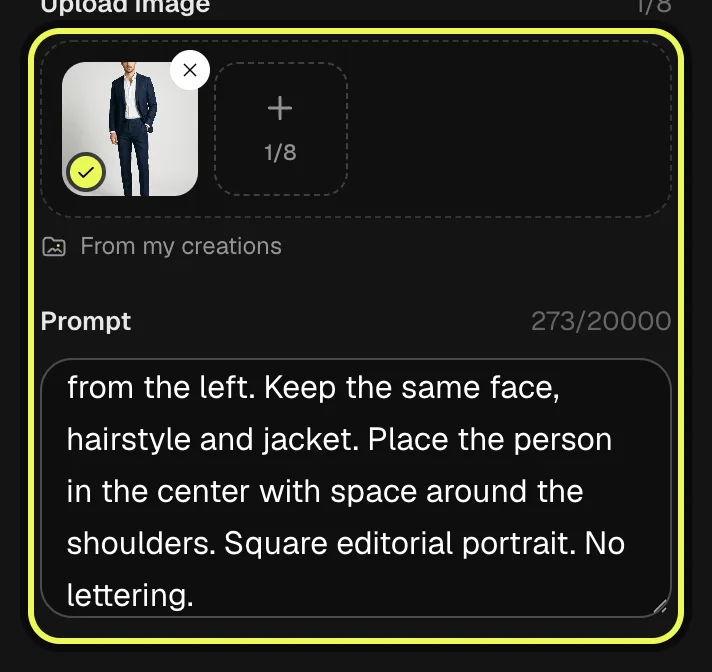
Step 2
Select the adult portrait and enter the edit
Add a clear photo of an adult who agreed to appear. Check that the selected thumbnail is the intended person, then paste the example prompt into Prompt. It asks for one background and lighting change while naming the face, hairstyle and clothes that should remain recognizable.
Step 3
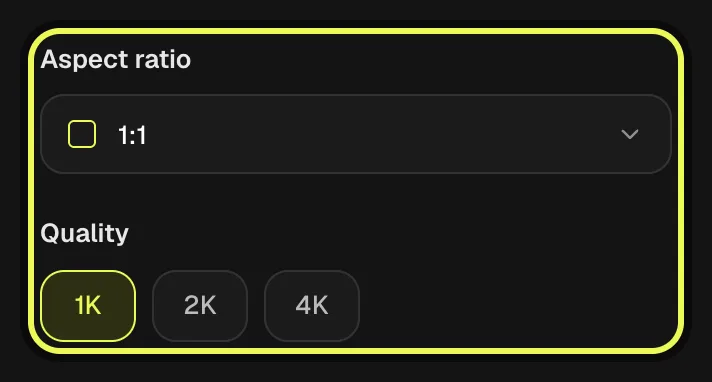
Choose 1K and the intended composition
Start with 1K and a square 1:1 frame for the exercise. Select one output image so the first comparison has a simple credit total. If your final use needs a taller or wider image, select that ratio deliberately and check the prompt for matching composition instructions before continuing.
Step 4
Read the image total and Generate
Sign in and check the model, reference, quality, ratio and image count. Read the total shown on Generate for your account. Start the edit when those choices match the brief. Keep this first prompt unchanged if you want a later comparison with Pro to test the model choice itself.
Step 5
Inspect the edit in My creations and download
Find the finished image in My creations. Compare the face and jacket with the source, inspect the new background and download the version you want to keep. Save the prompt beside it. If you need another take, identify the one detail to change before requesting a new image.
Our example
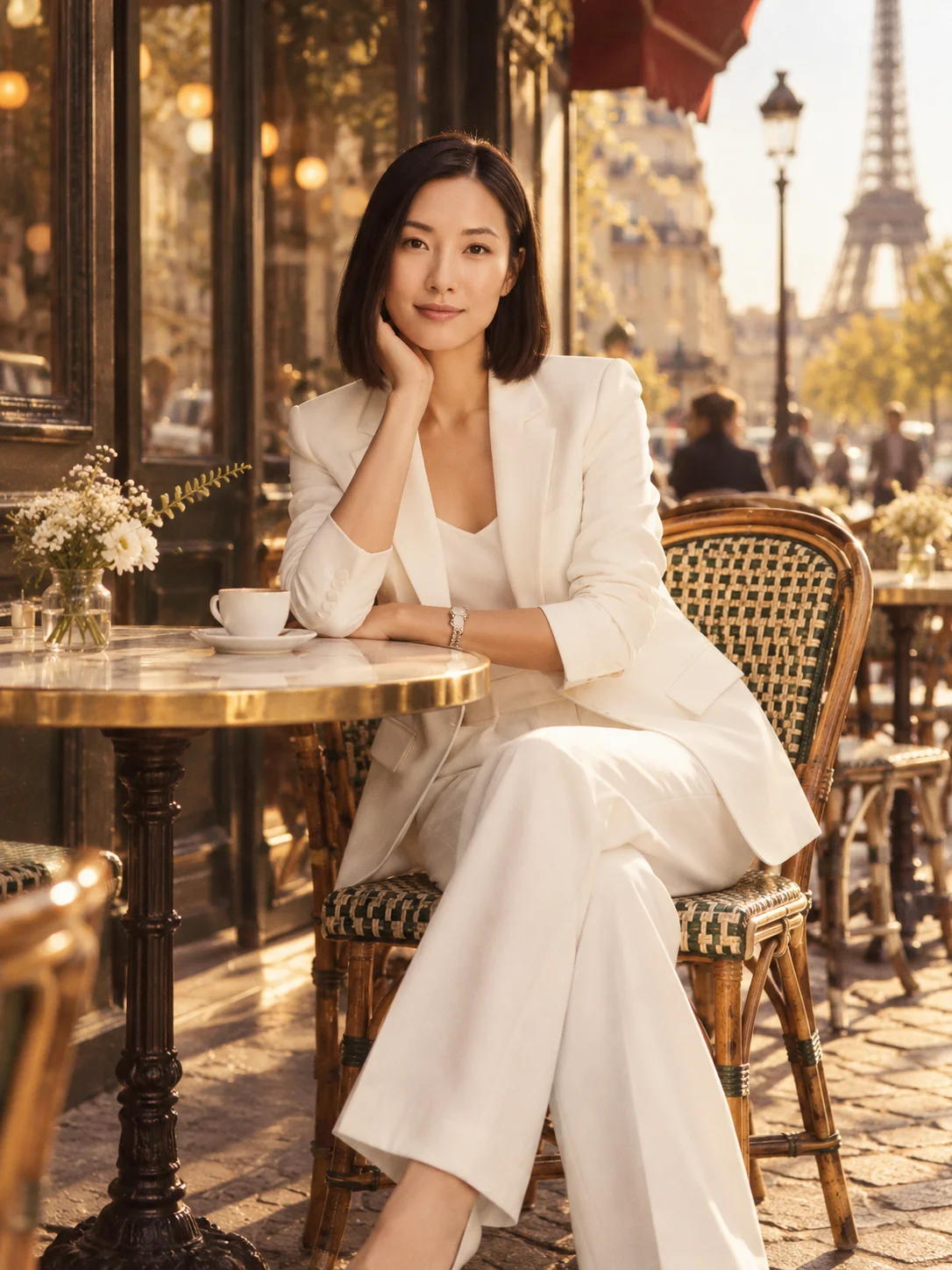
The image at the top of this page is one run on Vidlark, made with the photo shown in step 2 and the prompt below: Nano Banana 2.1, Image to Image, 1K. Use your own photo of an adult who agreed to appear; the link opens the workspace with the same prompt and settings.
Prompt
Edit the supplied adult portrait. Replace the background with a warm gray studio wall and use soft window light from the left. Keep the same face, hairstyle and jacket. Place the person in the center with space around the shoulders. Square editorial portrait. No lettering.
- Nano Banana 2.1
- Image to Image
- 1K
Use extra references with specific roles
Image to Image supports multiple reference images up to the current workspace limit. Begin with one photo for the portrait exercise. Add another only when it contributes something you can describe, such as a setting or an object. Tell the prompt which picture supplies the person and which supplies the separate visual detail. The current limit on Vidlark is 8 reference images.
Check permission for all supplied images. Keep references relevant to the edit and avoid several conflicting views when you cannot explain which should take priority. A clear relationship between the inputs makes your own review more useful: you can see whether the face came from the intended portrait and the background followed the separate scene reference.
For a series of images, save the approved prompt and reference set with each download. Keep the subject, aspect ratio and evaluation criteria consistent while testing 2.1 against Pro. You can switch between the available models within Vidlark, but compare the resulting files rather than assuming that switching names alone will preserve a character or layout.
Review the edit as a finished deliverable
Inspect the image at a useful viewing size, then zoom in on the face, hands, clothing seams and background edges. Compare it with the original reference. Check both what changed and what should have stayed the same. If the image includes lettering, read every word instead of deciding from the overall appearance that the text is usable.
Revise one instruction at a time. If the face changed too much, make the preservation request clearer and simplify the background instruction. If the layout is crowded, specify more open space in the intended area. Keep the previous version so you can compare the requested change instead of relying on memory after several generations.
Sign in before generating and read the current amount on Generate, including the selected image count. Paid plans offer priority processing, and image concurrency depends on the plan. Processing can still take time. Save the downloaded image and its prompt together so that a later version can be compared against an identified source rather than an unlabeled file.
Plan the credit budget before generating
The table shows current Vidlark list prices and the selected monthly plans’ credit amounts for one output at a time. Nano Banana 2.1 at 1K uses 40 credits at list price. Read the amount on Generate for your account before starting, especially after changing quality, duration, audio or the number of images.
Starter billed monthly costs $29.99 and provides 3,000 credits: at 32 credits each, that is about 93 images. Pro billed monthly costs $89.99 and provides 10,000 credits: at 20 credits each, that is about 500 images. These estimates spend the whole monthly allowance on the first setting in the table, with no other use. They round down to whole outputs; they are a planning calculation, not a promise that every attempt will be a usable final take.
Reserve part of the allowance for revisions. The image examples use one output per generation. A larger image count changes the total, and a new edit or comparison is another generation. Compare the amount for the actual job with the budget you have left before continuing.
| Model | Selected format | List credits | Starter credits | Pro credits |
|---|---|---|---|---|
| Nano Banana 2.1 | 1K | 40 | 32 | 20 |
| Nano Banana 2.1 | 2K | 55 | 44 | 28 |
| Nano Banana 2.1 | 4K | 60 | 48 | 30 |
| Nano Banana Pro | 1K | 55 | 44 | 28 |
| Nano Banana Pro | 2K | 60 | 48 | 30 |
| Nano Banana Pro | 4K | 70 | 56 | 35 |
FAQ
Where can I use the Nano Banana models in this guide?
Use the Nano Banana 2.1 and Nano Banana Pro model pages on Vidlark. The steps here follow those browser controls and save results to My creations. Google also provides its own image workflows, but their interface and account rules are separate from the settings and credit amounts described here.
How does the photo-editing workflow work?
The source image supplies a visual reference and the prompt describes the target edit. Name the part to change and the features to retain. Review the result against the source because the generated image can alter details beyond the requested change, especially when the brief changes several things at once.
Should I choose Pro before making a first edit?
Start with the version whose selected price and options suit your brief. Compare 2.1 and Pro using the same portrait, prompt and output size if the difference matters to the project. Inspect the actual face, edges and composition before deciding which version deserves the next round of work.
What should I check before using the downloaded image?
Check the adult’s consent, recognizable appearance, edges and any written text. Confirm that the composition fits its destination. Paid plans and credit packs include downloads without a watermark; image detail still needs your own review. A clean download is not a substitute for checking the contents of the file.
What credit allowance does a new account receive?
New accounts receive 100 signup credits; model access and the selected run price still apply.
Related models


Tools you'll need
Nano Banana 2.1
Made by Google. Vidlark is an independent platform and isn't affiliated with Google.
Updated Oct 20, 2026