Trend guide
Unforgettable Car AI: How to Do the 24 Card Trend
Unforgettable car AI makes the 24 card reveal from a photo: you hold up a 2 and a 4, then drop them to reveal a car behind you. On Vidlark, upload one adult photo, choose a car or add its photo, and make a 10-second clip. Download it and add the Unforgettable sound on TikTok.
- 24 card reveal tutorial
- One adult photo, optional car photo
- 10 seconds
What the Unforgettable car AI trend is
The format starts with two number cards close to the camera: a red 2 and a blue 4. The cards move away, and a car appears behind the person. The reveal, followed by a cheeky reaction, is the point of the scene. The numbers read 24; they are not a request for 24 photographs or a stack of 24 cards.
People use Unforgettable car trend AI to make that scene from photos instead of arranging a shoot. Vidlark supplies the card movement, the reveal and the setting. Your photo provides the person. A second, optional photo provides the car, or you can choose a vehicle already offered on the page.
The name also refers to the Unforgettable sound people add when posting. The generated clip comes without music. Treat the picture and the sound as two separate steps: first make the reveal, then place the song against the card drop when you share it.
Before you start
A free account is required to generate. Creating an account and paying for a video are separate: the signup credits do not cover this template. Check the price before starting rather than treating the sample player as a trial generation.
The person
Choose one adult who has agreed to the video. Use your own photo or a photo you have permission to use. A clear face and visible shoulders give you a useful starting point; a group photo makes the intended person less clear.
The vehicle
Decide whether this is a dream-car joke or a reveal of a particular car. The first route needs only the person photo. The second adds a clear vehicle photo in the optional slot.
How to make the Unforgettable car AI reveal on Vidlark
This Unforgettable car AI tutorial uses the Vertical style for a phone-shaped clip. For a 24 car trend AI video, prepare the person first and choose the vehicle second. You do not need to upload a reference clip, build a timeline or write a prompt. Follow the choices in the template card.
Step 1
Open the car reveal page
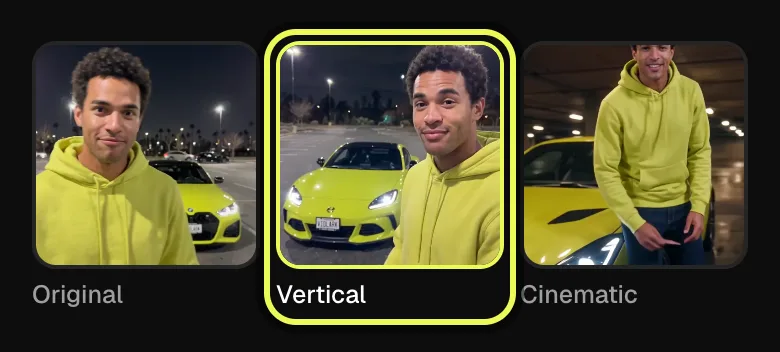
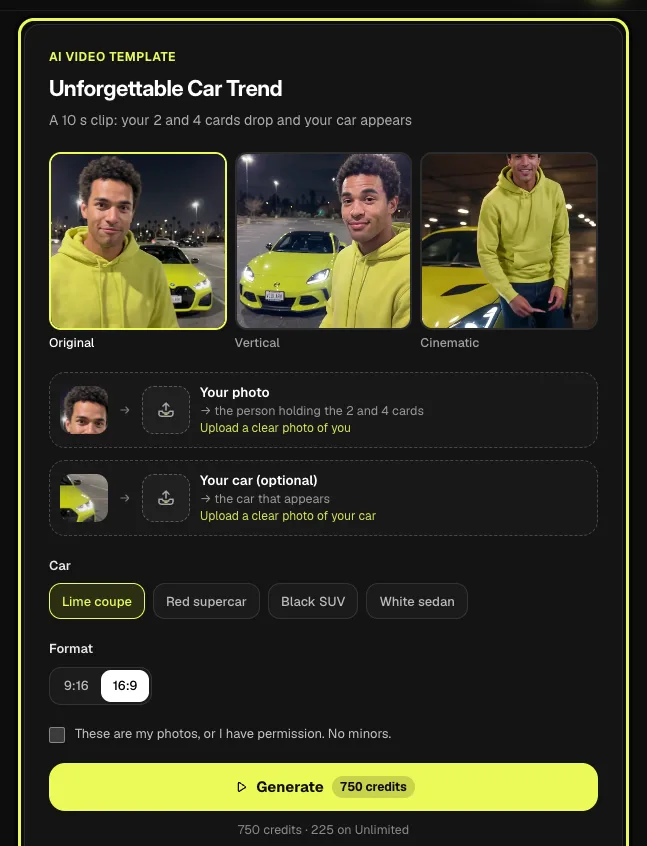
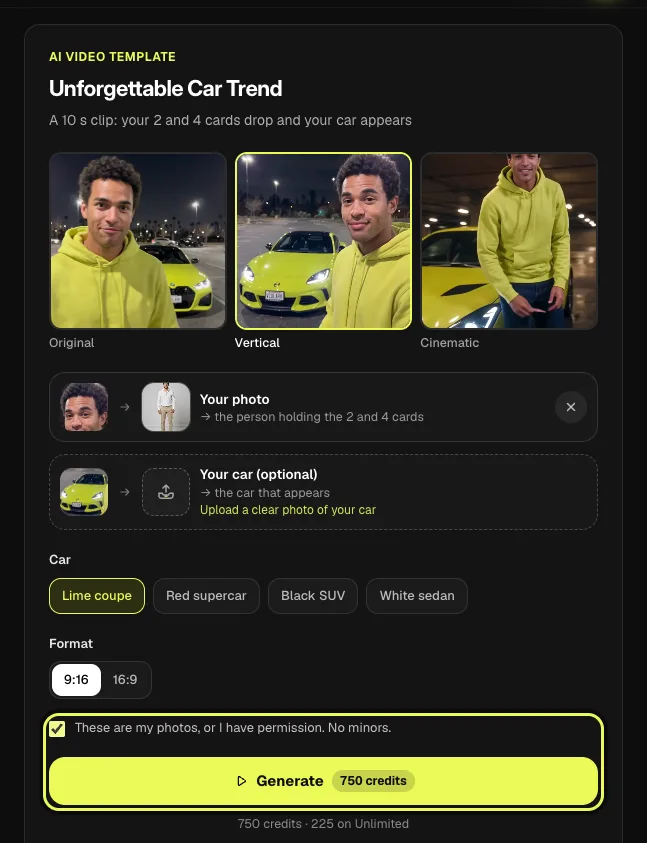
Use the generator link below and look at the sample before uploading. The page opens with Original selected, with Vertical and Cinematic beside it. On a phone, the choices sit above the sample; on a computer, the sample and template card sit alongside each other. Find the card with Your photo, the optional car slot and the Generate button.

Step 2
Choose a style and format
Select Vertical for the parking-lot reveal in 9:16, as in this walkthrough. Original starts in 16:9; Cinematic uses a different night-garage treatment in 9:16. The page also offers 9:16 and 16:9 format choices. Check the selected shape rather than assuming every style opens tall. Your choice affects how the person, cards and car fit together in the frame.
Step 3
Upload the adult photo and choose the car
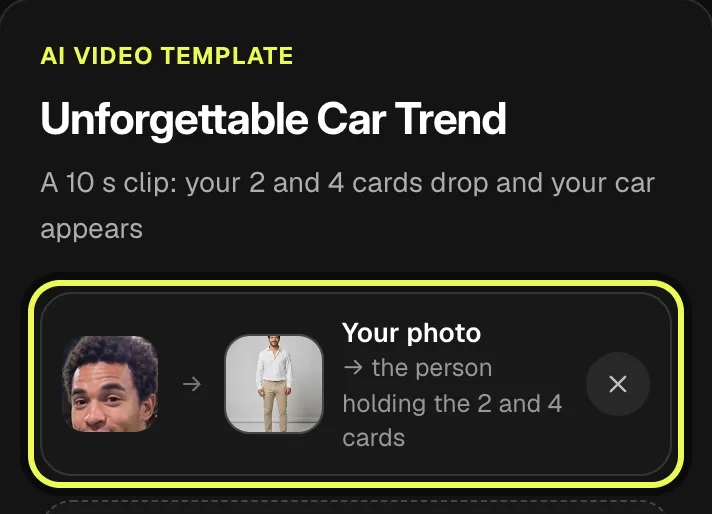
Put the adult photo in Your photo. For a supplied vehicle, leave Your car (optional) empty and choose one of the four cars. For a particular vehicle, place its photo in that second slot. One adult photo is required; the vehicle photo is optional. Check the previews before moving on, so a vehicle image does not end up in the person slot.
Step 4
Read the price, confirm permission and Generate
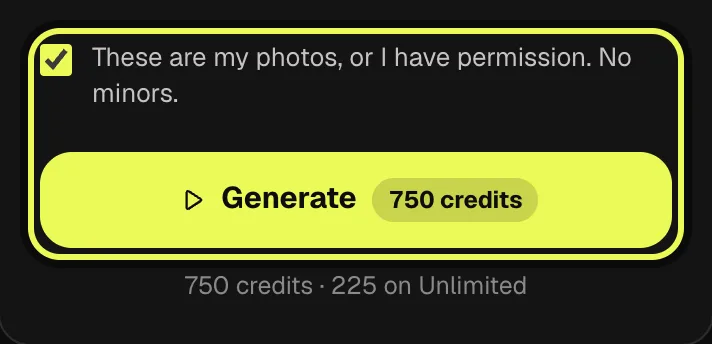
Review the cost shown on the Generate button for your account. Confirm that you own the photographs or have permission to use them, then tap Generate. If you need to sign in or arrange credits, complete that step before starting the video. The template is set to 10 seconds; changing a car choice does not mean you are requesting a separate video for each vehicle.
Step 5
Find your result, download and add sound
The video is usually ready in two to three minutes and stays in My creations. Open your finished result there and download it. The screenshot here shows the page’s Vertical sample to illustrate the expected framing; it is not a result from the demonstration upload. Add Unforgettable on TikTok before posting and align the card drop with the sound.

AI video template
Unforgettable Car Trend
A 10 s clip: your 2 and 4 cards drop and your car appears
Car
Format
750 credits · 225 on Unlimited
Unforgettable car AI styles: Original, Vertical, Cinematic
Every style is 10 seconds. The style changes the presentation of the reveal, rather than adding another person or requiring another set of photographs. Watch the sample after switching styles; the default Original look is landscape, so it is worth checking this before a phone-first post.
Original
The handheld parking-lot look at night, in 16:9. Choose it when you want the wider scene around the person and vehicle.
Vertical
The parking-lot scene in 9:16. This is the straightforward choice for a full-screen TikTok, Reels or Shorts clip. The card reveal remains the central action; you are choosing a tall composition.
Cinematic
A night garage, wet surfaces, warm lights and a slower pull-back around the car, in 9:16. Choose it for that setting and camera treatment.
Prepare the person and car photos
Use a photo where the adult faces the camera and the face is easy to see. The Unforgettable car AI template creates the number cards, so you do not need to photograph someone holding them. Choose the person for the reveal first, then decide what vehicle belongs behind them.
If you upload a car photo, choose one that makes its body shape, color and wheels clear. The template aims to carry those features into the reveal.
Without a car upload, the four choices are Lime coupe, Red supercar, Black SUV and White sedan. These describe the supplied vehicles; you do not need to identify a manufacturer or write a car prompt. For a friend’s new-car celebration, use their agreed photo and the vehicle photo in the matching slots.
Download and finish the reveal
When the video is ready, open My creations and download your result. The page sample remains an example of the style, not the result of the photo you just selected. Compare your downloaded clip with your intended choices: the right adult, the chosen car, the format and the card reveal. Watch once at normal speed before deciding whether it is ready to post.
Upload the clip on TikTok, use Add sound and search for Unforgettable. Choose the sound used by the trend videos, then line the card drop up with the beat. The download itself does not include that track. If you share on another platform, add the sound there rather than expecting music to arrive with the generated picture.
For paid downloads, the rule is simple: videos made with a credit pack or a plan download without a watermark.
FAQ
Are signup credits enough for this reveal?
No. A template video uses 750 credits at 480p (1,500 in HD), about $10 with a credit pack. Starter and Pro plans pay half (375) and Unlimited pays 30%: 225 credits a video, about $2.25. The 100 free credits you get when you sign up are not enough for one video.
Do the number cards need to be in my input photo?
No. The template creates the card action. Start with a clear adult photo showing the face and shoulders, rather than trying to photograph the transition in advance.
Which style should I check for a wide parking-lot clip?
Start with Original, which opens in 16:9. Vertical uses the parking-lot scene in 9:16; Cinematic changes the setting and camera treatment. Check the format before generating.
Does the vehicle upload replace the person?
No. Your photo supplies the card holder. Your car (optional) supplies the vehicle behind that person. Use the previews to check each role before you generate.
Can two adults perform the reveal together in one template?
The Unforgettable car AI template has one person slot. Use one consenting adult for the card holder; the optional second slot is a car image, not a second person.
Related trends

Tools you'll need
Unforgettable Car Trend
A 10 s clip: your 2 and 4 cards drop and your car appears
Updated Oct 16, 2026