Trend guide
TikTok Ceiling Fan Transition Tutorial on Vidlark
To do the ceiling fan transition on Vidlark, upload one full-body photo, optionally add up to three outfit photos, and generate a 10-second vertical clip. Fan blades reveal four outfits from an overhead view. This TikTok ceiling fan transition tutorial covers the photo order, price check, download and adding sound before posting.
- Ceiling fan transition tutorial
- One person photo, up to three outfits
- 10 s, 9:16
The overhead outfit-change effect
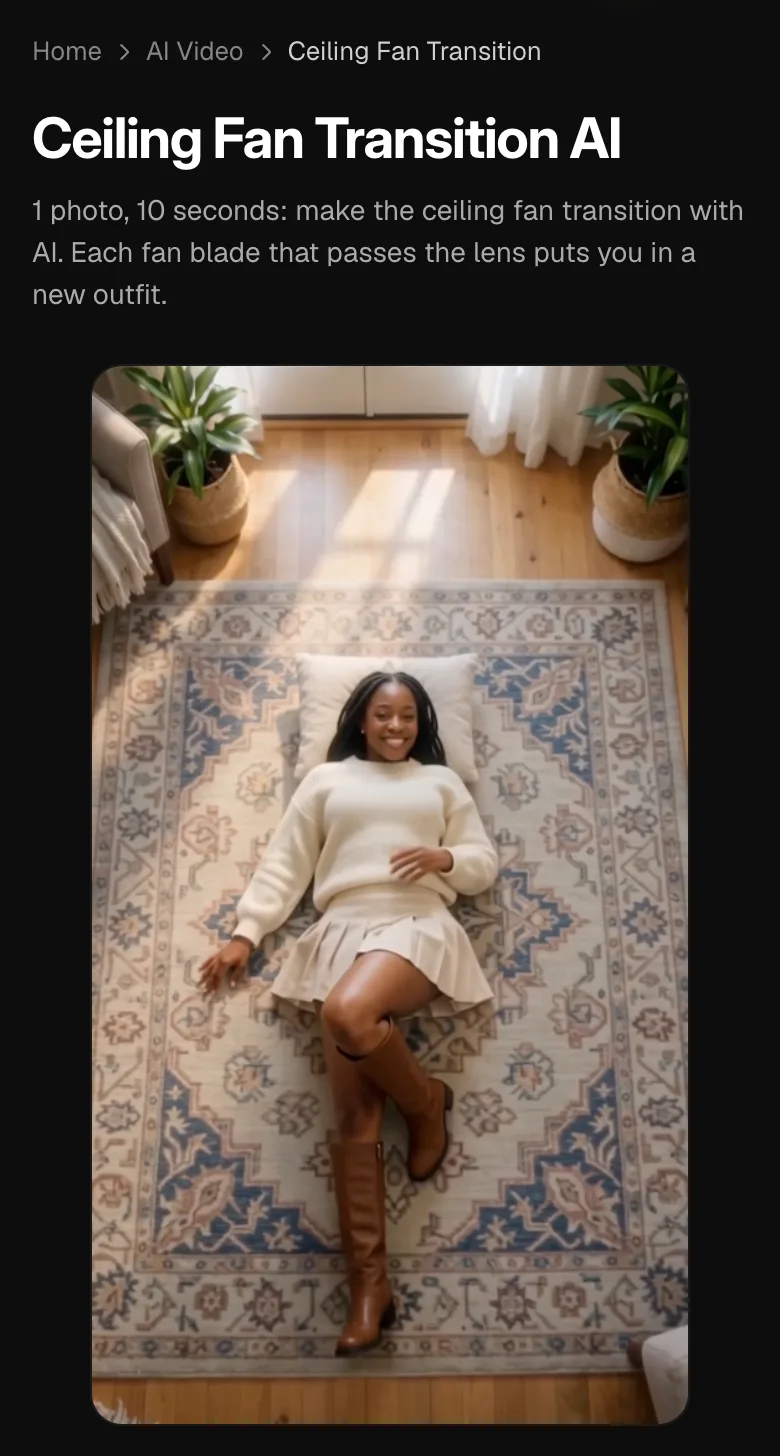
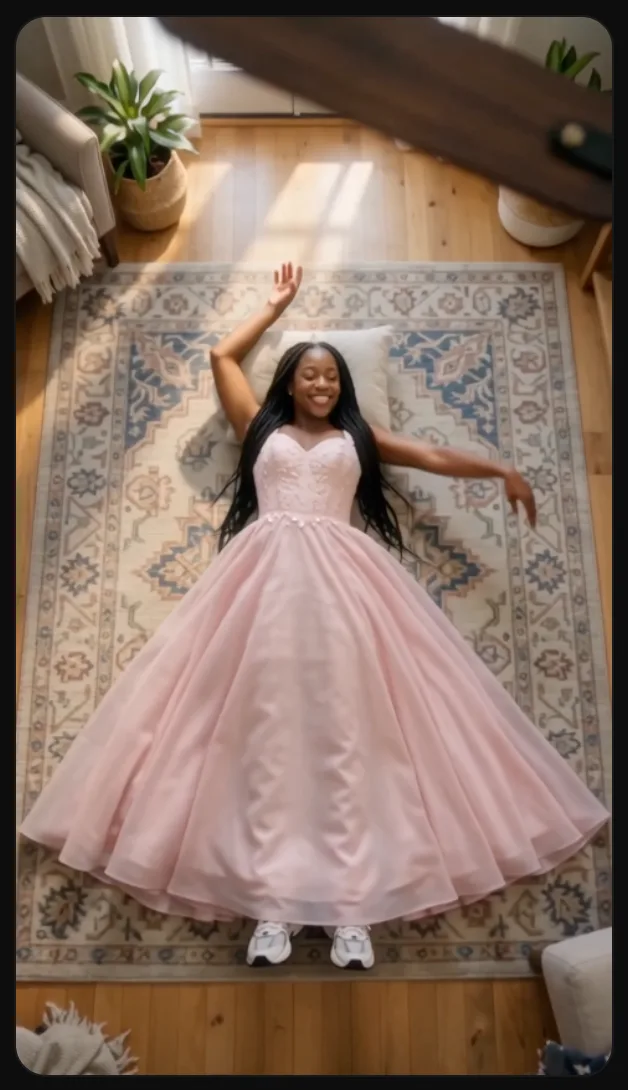
The camera appears to look straight down at someone lying on a rug. A fan blade crosses the view, briefly hides the person and reveals a different outfit. The blade is the visual cover for each change.
A ceiling fan trend tutorial can describe either filming an outfit transition or generating one with AI. This ceiling fan transition tutorial uses Vidlark’s photo-based template. The ceiling view, rug and moving blades are part of the generated scene. You do not need a physical fan, an overhead camera setup or footage of yourself changing clothes.
Plan four looks, not four outfit changes
The clip is 10 seconds long and vertical 9:16. It starts in the clothes from your main photo, then moves through three more looks. That means four outfits in total and three changes. You can keep the supplied sequence, replace selected later looks, or provide references for all three optional positions.
The defaults are your own starting clothes, a pale pink ball gown, a cream sweater with a pleated skirt and boots, then a green dinosaur onesie with a bowl of popcorn. The final look changes the mood of the clip. Watch the sample through to the end before deciding whether you want to keep that ending.
Look 1: your starting photo
Your main person photo establishes the opening outfit. Choose the clothes you want visible before the first change, as well as a clear view of the adult’s face and full body.
Looks 2 and 3
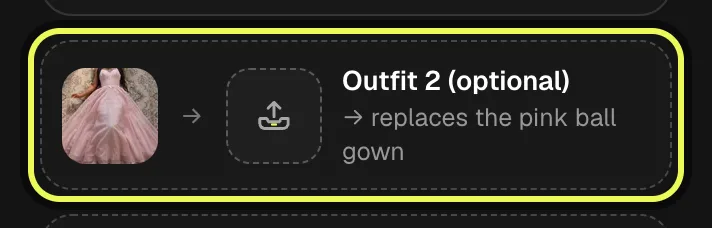
Outfit 2 (optional) replaces the gown. Outfit 3 (optional) replaces the knit-and-boots look. These are separate positions, so putting a picture in one does not fill the other.
Look 4: the ending
Outfit 4 (optional) replaces the last look. Leave it empty to keep the dinosaur ending, or use that slot for your own final outfit. Empty positions keep their supplied look.
Prepare the account and main photo
A free account is required to generate. Watching the sample and creating your own clip are different actions. The signup credits are not enough for this template; account creation does not include a completed outfit-change clip.
Use one consenting adult, standing straight, with the head, clothes and shoes in frame. Keep the arms relaxed and the face turned toward the camera. Avoid sunglasses over the eyes or a hat brim hiding the face. You do not need to lie down for the input photo: the ceiling fan transition template puts the person into the overhead scene.
Ceiling fan transition tutorial: 5 steps on Vidlark
This TikTok ceiling fan transition tutorial uses the Original template and keeps the default clothing sequence for the screenshots. You can follow the same steps with your own optional outfit references. The sample pictured at the end is an illustration of the template, rather than a newly generated result from our demonstration photo.
Step 1
Open the ceiling fan transition page
Follow the template link below and watch the sample to see the overhead view and the four looks. Find the template card under or beside it. There is one style, Original, so there is no second costume style to select. The controls you need are the main person upload, the three optional outfit slots, the permission checkbox and Generate.
Step 2
Upload the full-body person photo
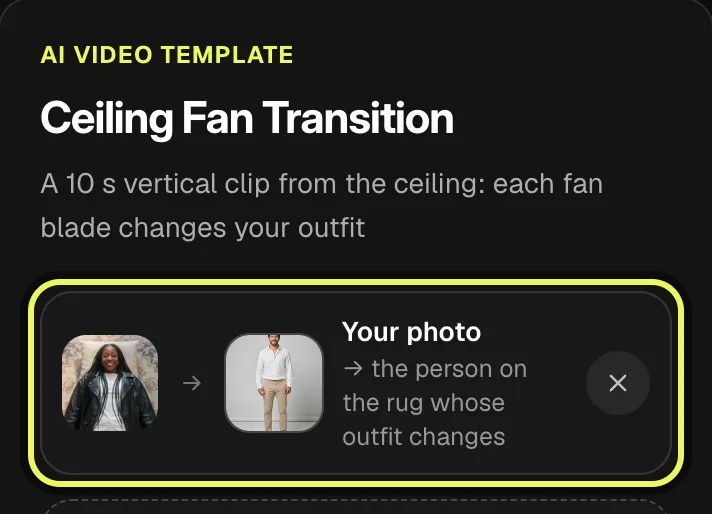
Select Your photo and choose a standing photo of the adult who will appear throughout the clip. Include the shoes and leave the face clear. Check the preview before adding clothing references. The screenshot uses an existing adult demonstration image from the site; the page sample remains a separate example. Use your own agreed photo when making your version.
Step 3
Fill only the outfit positions you want to replace
For the supplied sequence, leave Outfit 2 (optional), Outfit 3 (optional) and Outfit 4 (optional) empty. To customize it, upload the gown replacement into position 2, the knit replacement into position 3 and the final outfit into position 4. You can fill fewer than three. Read the slot label while choosing each file, rather than treating all the optional uploads as interchangeable.
Step 4
Check the cost, confirm permission and Generate
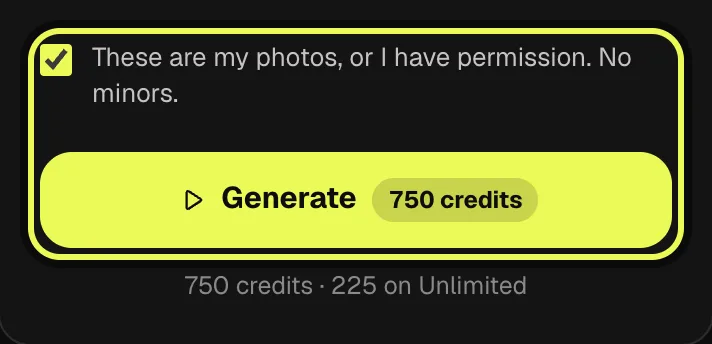
Read the price on the button before starting. Confirm you own the photos or have permission to use them, then tap Generate. Sign in and arrange the required credits if prompted. The ceiling fan transition is set to 10 seconds and 9:16; optional clothing photos change the references for its later looks, rather than creating a separate video for each uploaded outfit.
Step 5
Download your own result and finish it on TikTok
The generated video is usually ready in two to three minutes in My creations. Open your result there and download it. The screenshot here is the page’s Original sample, showing the kind of overhead transition to expect; it is not the demonstration adult’s finished video. After downloading your own clip, add the trend sound on TikTok and watch the outfit changes with the music before posting.
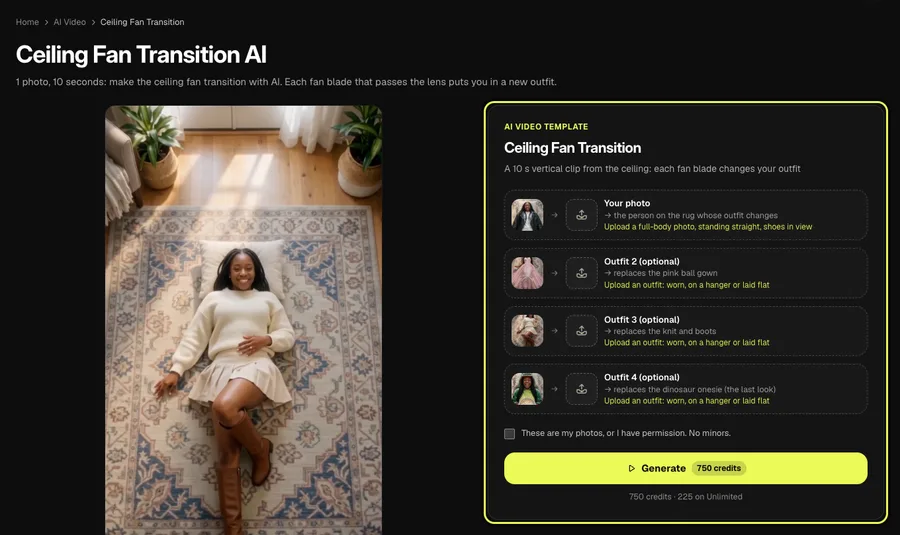
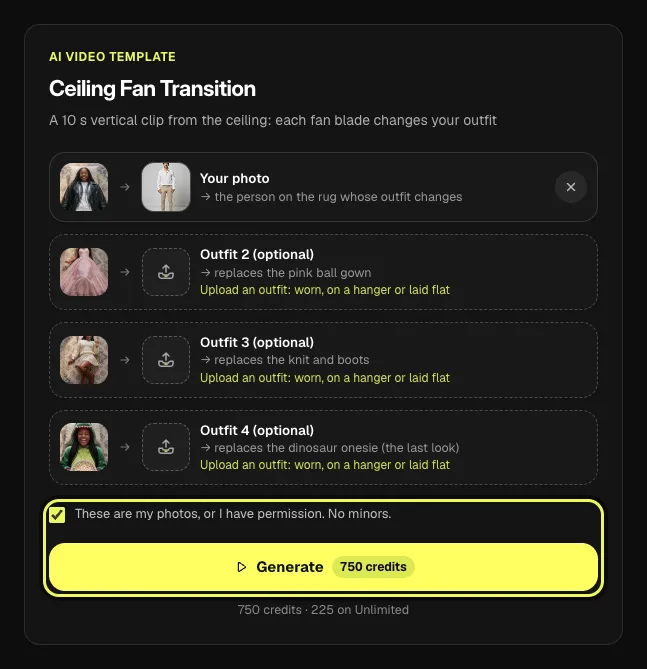
AI video template
Ceiling Fan Transition
A 10 s vertical clip from the ceiling: each fan blade changes your outfit
750 credits · 225 on Unlimited
Ceiling fan transition tutorial: outfit references
An outfit reference can show the clothes worn, hanging or laid flat. Choose a plain background so the garment and its outline are easy to see. If you use a worn outfit photo, remember why you are uploading it: this is a clothing reference for the adult in the first slot, not a request to introduce its wearer as another person.
Arrange the files in the order you want to see them. Start with the opening clothes in the main photo, then decide on Outfit 2, Outfit 3 and Outfit 4. You can keep some defaults and replace others. For example, filling only the last slot leaves the gown and knit positions unchanged while changing the final clothing reference.
Review your ceiling fan transition, then add sound
Play the finished result through at normal speed before sharing it. Check the adult’s face across the changes, the order of the clothes and the last outfit. Look at the moments just after each blade passes, when the new look becomes visible. The ceiling fan transition aims to preserve the person while changing the clothes; inspect small details rather than assuming an exact match.
Your video waits in My creations when it is ready, usually after two to three minutes. Download that result, not the demonstration sample on the template page. The sample explains the scene and default ending; it is not a preview generated from your selected photograph. Paid downloads follow this rule: videos made with a credit pack or a plan download without a watermark.
The downloaded clip has no music. Upload it on TikTok, use Add sound and look for the ceiling fan trend sound.
FAQ
Can signup credits cover a full fan-transition clip?
No. A template video uses 750 credits at 480p (1,500 in HD), about $10 with a credit pack. Starter and Pro plans pay half (375) and Unlimited pays 30%: 225 credits a video, about $2.25. The 100 free credits you get when you sign up are not enough for one video.
Why do I see four upload slots if one photo is enough?
Your photo is the required person input. The other three positions are optional clothing references for looks 2, 3 and 4. Leaving them empty keeps the supplied outfits.
What happens if I fill only Outfit 4?
Your starting clothes remain in look 1, the supplied gown and knit remain in looks 2 and 3, and your reference replaces the final outfit. Optional slots work by position.
Does a person in an outfit reference join the video?
The ceiling fan transition template has one person role, supplied by Your photo. A worn clothing reference belongs in an outfit slot to guide a look, not to add its wearer as another character.
Is the sample on the page my generated preview?
No. It demonstrates the Original template and its default clothing sequence. Your completed video appears in My creations after generating. Check that result for your person and outfit choices before downloading.
Related trends

Tools you'll need
Ceiling Fan Transition
A 10 s vertical clip from the ceiling: each fan blade changes your outfit
Updated Oct 16, 2026